Best AI Captions Generators (2026)
What content managers and growth marketers should compare before choosing a ai captions solution for increase brand awareness.


This playbook helps content managers and growth marketers compare the best ai captions options for audio and video creation. It breaks down where descript, veed stand out, when alternatives such as heygen, synthesia make more sense, and which setup fits B2B companies and B2C brands and solo operators and small businesses.
TL;DR
If you need AI-generated captions for video content and you are short on time, here is the short answer: Descript is the strongest all-in-one option for teams that edit and caption in the same workflow, VEED is the fastest browser-based path for social-first creators, and CapCut is the best free starting point for short-form content. Rev AI wins when transcription accuracy matters more than visual styling, and Subtitle Edit is the right pick for professionals who need granular, frame-level control without paying a subscription. The rest of this guide breaks down exactly where each tool fits, where it falls short, and which one matches your team, budget, and production workflow.
Table of Contents
Best Tools for AI Captions (Quick Comparison)
| Tool | Best For | Starting Price | Caption Accuracy | Languages | Free Tier |
|---|---|---|---|---|---|
| Descript | All-in-one editing + captions | $24/mo | High (AI-powered) | 61+ | Yes (1 hr/mo) |
| VEED | Browser-based social video | $12/mo | High (97%+) | 125+ | Yes (watermarked) |
| CapCut | Free short-form content | Free | Good (clear audio) | 20+ | Yes (full basic) |
| Rev AI | Transcription-first accuracy | $0.25/min | Very High (96%+) | 38+ | Yes (45 min/mo) |
| Subtitle Edit | Professional manual control | Free (open source) | Manual + API | 300+ formats | Yes (fully free) |
Best Tools for AI Captions (Quick Comparison)
1. Descript
What It Does
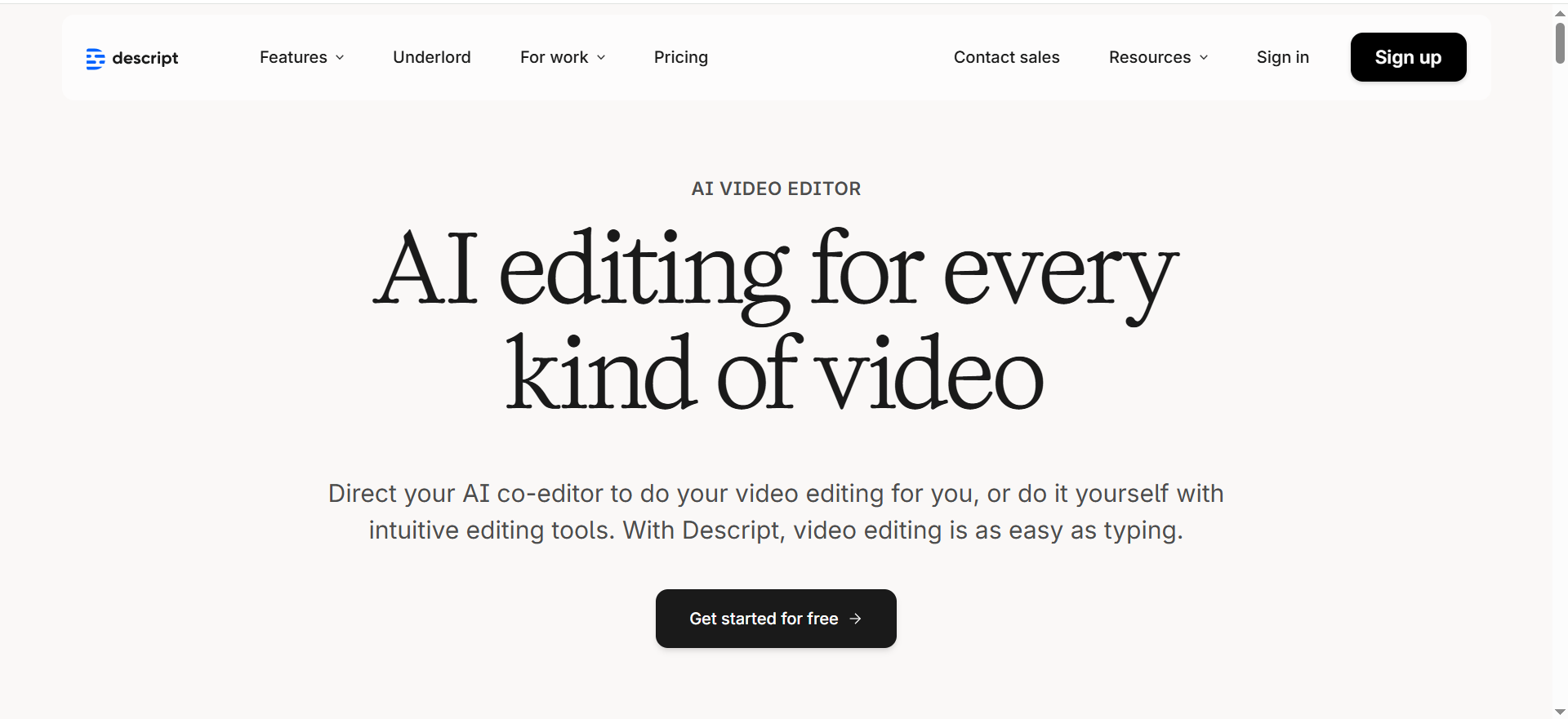
Descript is an all-in-one audio and video editor that treats media like a text document. You upload a video, Descript transcribes it automatically, and you edit the video by editing the transcript. Captions are generated directly from the transcript and can be styled, animated, and burned into the export. It also handles screen recording, podcasting, clip creation, and AI-powered voice features.
Why Teams Use It
Content teams choose Descript because the captioning workflow is not a separate step. You edit the video, clean up filler words, adjust pacing, and the captions update automatically. There is no need to export an SRT file and import it into another tool. For teams producing weekly podcasts, YouTube content, or internal video, this saves hours of back-and-forth between editing and subtitling tools.
What It Is Good For
Descript is good for long-form video editing where captions are part of the final deliverable. Podcast producers who repurpose audio into video clips with burned-in captions get the most value. Marketing teams that need consistent caption styles across dozens of videos per month benefit from the template system. The AI filler-word removal and silence trimming features also reduce post-production time before captions are even applied.
When It Is a Good Fit
Descript fits teams that already use it (or want to consolidate) as their primary editor. If your workflow involves recording, editing, and captioning in the same session, Descript eliminates tool-switching. It works well for solo creators and small teams (2-5 people) producing content for YouTube, LinkedIn, or internal training. The collaboration features on the Business plan make it viable for agencies managing multiple client accounts.
When It Is Not a Good Fit
Descript is not the best choice if you only need captions and already have a video editor you prefer. The $24-65/month cost is hard to justify when captioning is the only feature you will use. Teams doing high-volume short-form content (30+ clips per week) may find the per-minute transcription limits restrictive. The caption styling options, while solid, are less flexible than dedicated tools like VEED for trend-driven social formats.
How to Use It
Upload your video or record directly in Descript. The transcript generates automatically. Clean up any errors in the text editor (edits to the text edit the video). Click the captions panel, choose a style template (Typewriter, Karaoke Classic, Bold Italic Green, Impact Yellow, Modern Yellow Waveform, Classic White, Bold Two Words, or Large Bold White), customize colors and positioning, and export. For teams, save custom caption templates to your brand kit so every export is consistent.
Key Capabilities
Automatic transcription and caption generation from video and audio. Multiple animated caption styles with full customization of font, color, word highlighting, and positioning. Caption translation in 61 languages. Audio dubbing in 30+ languages with native-sounding AI speakers. Lip sync that matches speaker mouth movements to translated audio. Filler word removal, silence trimming, and AI-powered editing. Screen recording and multitrack editing. Collaboration features for teams.
Pricing
Free plan: $0, approximately 1 hour of media per month. Hobbyist: $24/month (or $16/month billed annually), roughly 10 hours per user per month with basic AI tools. Creator: $35/month (or $24/month billed annually), 10 hours per user per month with full AI features. Business: $65/month (or $50/month billed annually), approximately 30 hours per user per month. Annual billing saves up to 35%.
Free Tier?
Yes. The free plan includes about 60 minutes of media per month with access to the core editor and basic caption features. It is enough to test the workflow on a few videos before committing.
Downsides and Limitations
Transcription minutes are capped on every plan, which can be a bottleneck for high-volume teams. Caption styling is good but not as trendy or social-media-optimized as VEED or CapCut. The desktop app can be resource-heavy on older machines. The learning curve is moderate since Descript's text-based editing paradigm is different from traditional timeline editors. No mobile editing app.
2. VEED
What It Does
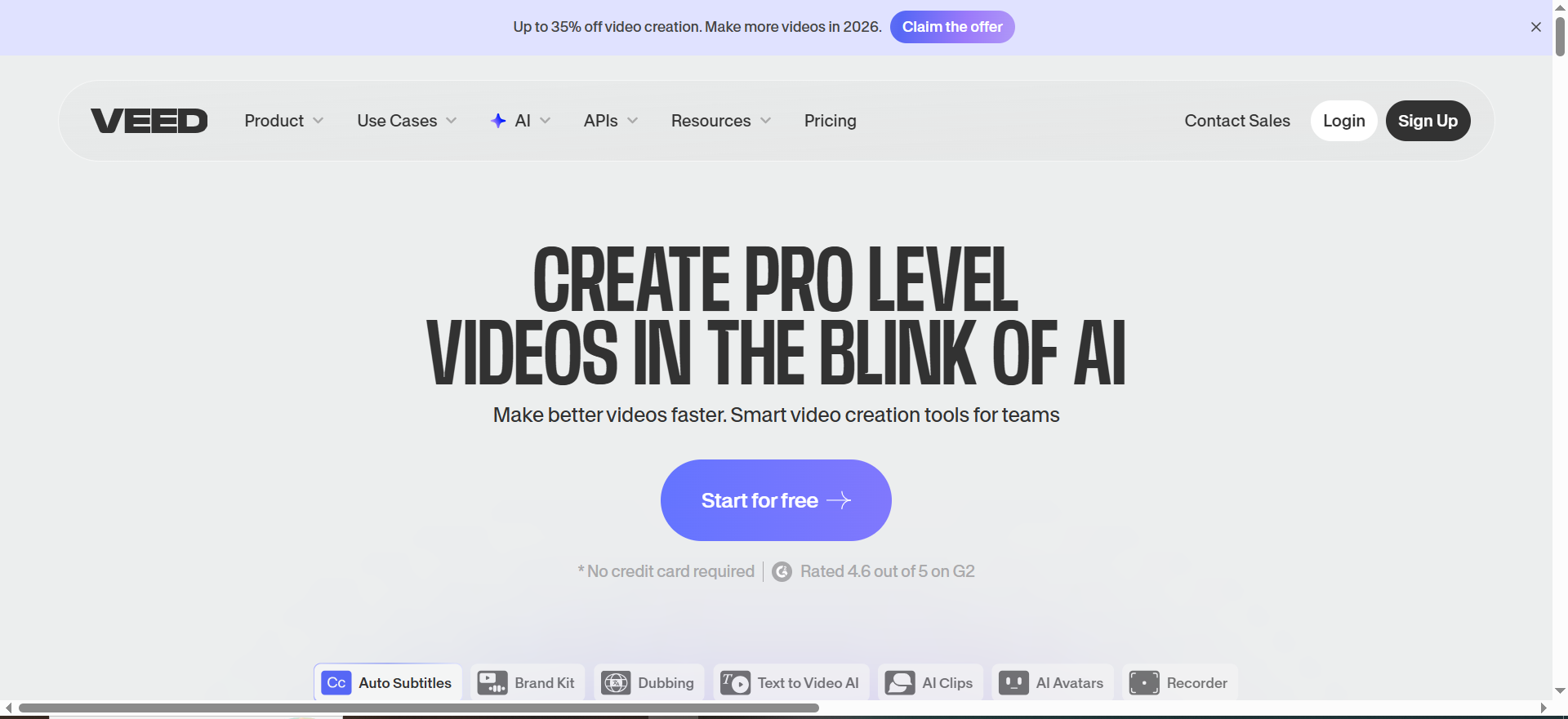
VEED is a browser-based video editor built for fast social content production. Its auto-subtitle feature transcribes video audio and generates styled captions in a single click. VEED also includes AI avatars, text-to-video, background removal, screen recording, and a library of templates optimized for social platforms.
Why Teams Use It
VEED is the fastest path from raw footage to captioned social video. There is no software to install, the interface is simple enough for non-editors, and the caption styling is designed for platforms like Instagram Reels, TikTok, and LinkedIn video. Marketing teams that produce a high volume of short clips use VEED because the time-to-publish is significantly lower than with desktop editors. Teams can also benefit from exploring best AI video editing tools for Instagram Reels to optimize for platform-specific requirements.
What It Is Good For
VEED is good for short-form, social-first video content where caption aesthetics matter as much as accuracy. The Dynamic Subtitles feature adds expressive animation to individual words, which helps with engagement on scroll-heavy feeds. It also works well for teams that need subtitle translation without a separate localization workflow since VEED supports 125+ languages for auto-transcription.
When It Is a Good Fit
VEED fits social media managers, content marketers, and small creative teams that need to produce 10-50 captioned clips per week without a dedicated video editor on staff. It is also a good fit for remote or distributed teams since everything runs in the browser with no installation required. If your primary output is Reels, TikToks, YouTube Shorts, or LinkedIn video, VEED is built for that exact workflow.
When It Is Not a Good Fit
VEED is not ideal for long-form video editing, podcast production, or workflows that require advanced timeline editing. The free plan adds a watermark and caps exports at 720p, which is a non-starter for brand content. Browser-based editing can feel sluggish with large files or slow internet connections. Teams that need precise frame-level caption timing will find VEED's controls less granular than desktop tools like Descript or Subtitle Edit.
How to Use It
Open VEED in your browser, upload a video (or record with the built-in screen recorder), click "Auto Subtitles," choose your language, and let the AI transcribe. Review the transcript, fix any errors, select a caption style (or use Dynamic Subtitles for animated word effects), customize fonts and colors, and export. You can also download the captions as SRT or VTT files for use on YouTube or other platforms.
Key Capabilities
Auto subtitles in 125+ languages with speaker detection. Dynamic Subtitles with per-word animation and styling. One-click dubbing into other languages. SRT and VTT export for accessibility compliance. AI avatars and text-to-video. Filler-word removal. Brand kit for consistent styling across projects. Real-time collaboration on the Pro plan. 500GB storage on Pro.
Pricing
Free plan: $0 with watermark, 720p export, 10-minute video limit. Lite: $12/user/month (annual) or $19/user/month (monthly) for individuals creating high-quality videos. Pro: $29/user/month (annual) or $49/user/month (monthly) with Clean Audio, Eye Contact, Magic Cut, AI Clips, subtitle translation, brand kit, collaboration, and 500GB storage. Enterprise: custom pricing.
Free Tier?
Yes, but with significant limitations. The VEED watermark appears on all exports, resolution is capped at 720p, and videos are limited to 10 minutes. Usable for testing the workflow, not for publishing branded content.
Downsides and Limitations
The watermark on the free plan makes it unusable for professional output. Browser-based editing has inherent performance limitations with large files. Caption timing adjustments are less precise than desktop editors. The jump from Lite ($12/mo) to Pro ($24-29/mo) is steep, and many of the best caption features (Dynamic Subtitles, brand kit) are locked to Pro. No offline editing capability.
3. CapCut
What It Does
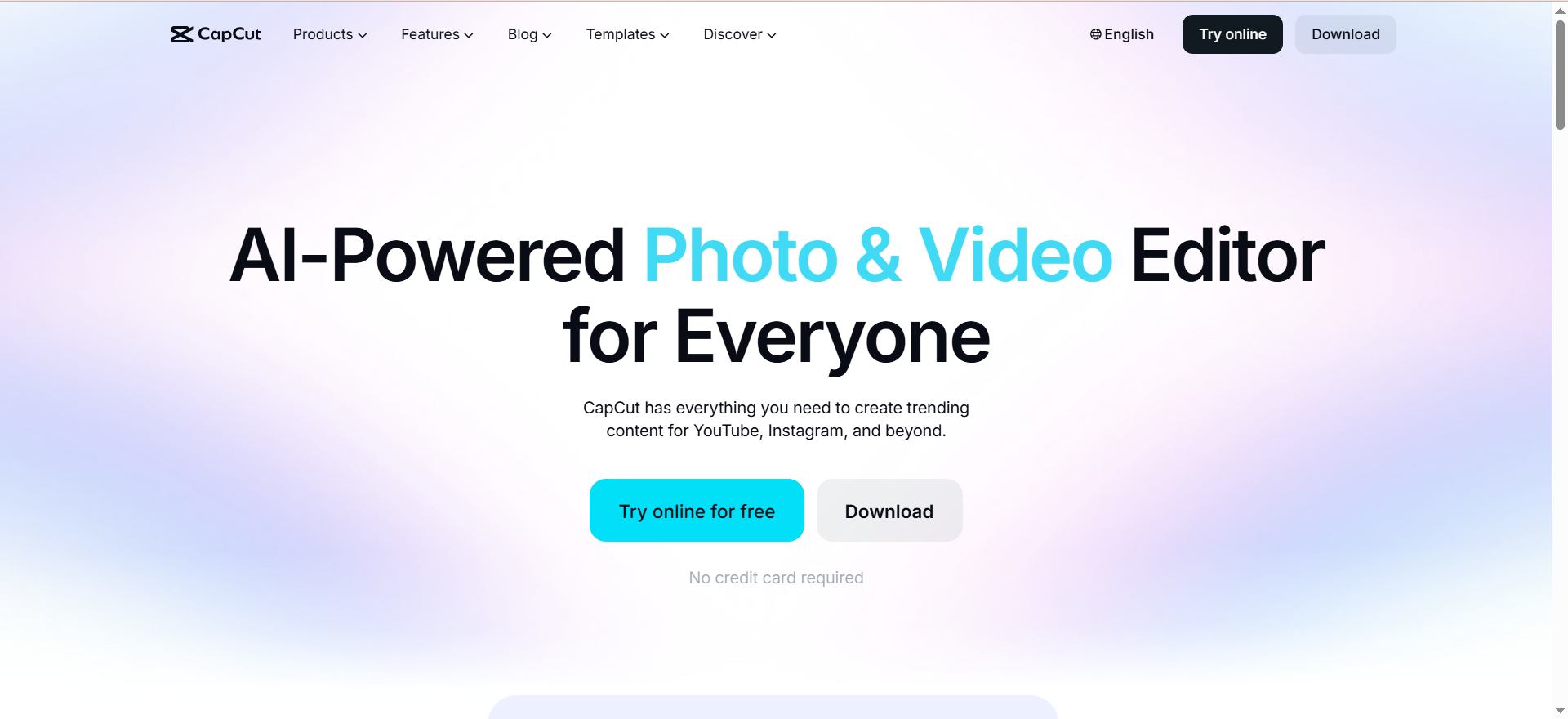
CapCut is a video editor developed by ByteDance (the company behind TikTok) that offers both mobile and desktop editing with AI-powered auto captions. The tool generates subtitles from video audio, supports basic styling, and integrates tightly with TikTok's publishing workflow. CapCut also includes templates, effects, transitions, and a large library of royalty-free music and sound effects.
Why Teams Use It
CapCut is the default editor for a large portion of TikTok creators, and the auto caption feature is one of its most-used tools. Teams adopt CapCut because the free tier is genuinely functional for basic editing and captioning, and the TikTok integration removes friction from the publish step. For organizations producing short-form content at scale, the low cost and template system make it easy to maintain output velocity.
What It Is Good For
CapCut is good for short-form vertical video content, especially for TikTok, Instagram Reels, and YouTube Shorts. The auto caption feature works well with clear audio and standard pacing. The template library lets creators produce styled, captioned videos quickly without advanced editing skills. The mobile app is particularly strong, making CapCut a solid choice for teams that edit on the go.
When It Is a Good Fit
CapCut fits individual creators, social media teams, and small marketing departments that primarily produce short-form content (under 3 minutes). It is a good fit when budget is the primary constraint since the free plan covers most basic needs. Teams already in the TikTok ecosystem get the most seamless experience. If your workflow is shoot-on-phone, edit-on-phone, publish-to-TikTok, CapCut is the natural choice.
When It Is Not a Good Fit
CapCut is not the right choice for professional video production, long-form content, or workflows that require high caption accuracy on technical or accented speech. The auto caption feature requires manual correction more often than Descript or Rev AI, especially with fast-paced dialogue or niche vocabulary. Data privacy may be a concern for enterprise teams given the ByteDance ownership. The Pro plan at $19.99/month is not cheap relative to what you get, and advanced caption features are locked behind it.
How to Use It
Open CapCut (mobile or desktop), import your video, navigate to the Text panel, select "Auto Captions," choose your language, and generate. Review the transcript, correct errors, select a caption template, adjust font and positioning, and export. On Pro, you also get speaker identification captions and AI voice effects. For TikTok, you can publish directly from the app.
Key Capabilities
AI auto captions with multiple language support. Speaker identification on Pro. Template library with trending caption styles. Multi-track timeline editing. Keyframe animation, chroma key, and basic stabilization. Royalty-free music and sound effects. Motion tracking (Pro). AI voiceover with text-to-speech. Direct TikTok integration. Mobile and desktop apps.
Pricing
Free plan: $0 with full basic editing tools, free music, filters, effects, and AI voiceover. Standard: $9.99/month (mobile-focused, watermark-free exports). Pro: $19.99/month or $179.99/year with 4K export, AI auto captions, premium asset library, and advanced features. Regional pricing may apply.
Free Tier?
Yes. The free plan is one of the most functional free video editors available. It includes basic editing, effects, music, and text-to-speech. However, auto captions with full accuracy and speaker identification require the Pro plan. Free exports may include a CapCut watermark depending on features used.
Downsides and Limitations
Caption accuracy drops noticeably with accented speech, fast delivery, or technical vocabulary. Advanced auto-caption features are locked to the Pro plan. Data privacy concerns related to ByteDance ownership may be a blocker for enterprise or regulated industries. The Standard plan is mobile-only with no annual option. Desktop performance can lag with longer videos. Limited caption export format options compared to dedicated captioning tools.
4. Rev AI
What It Does
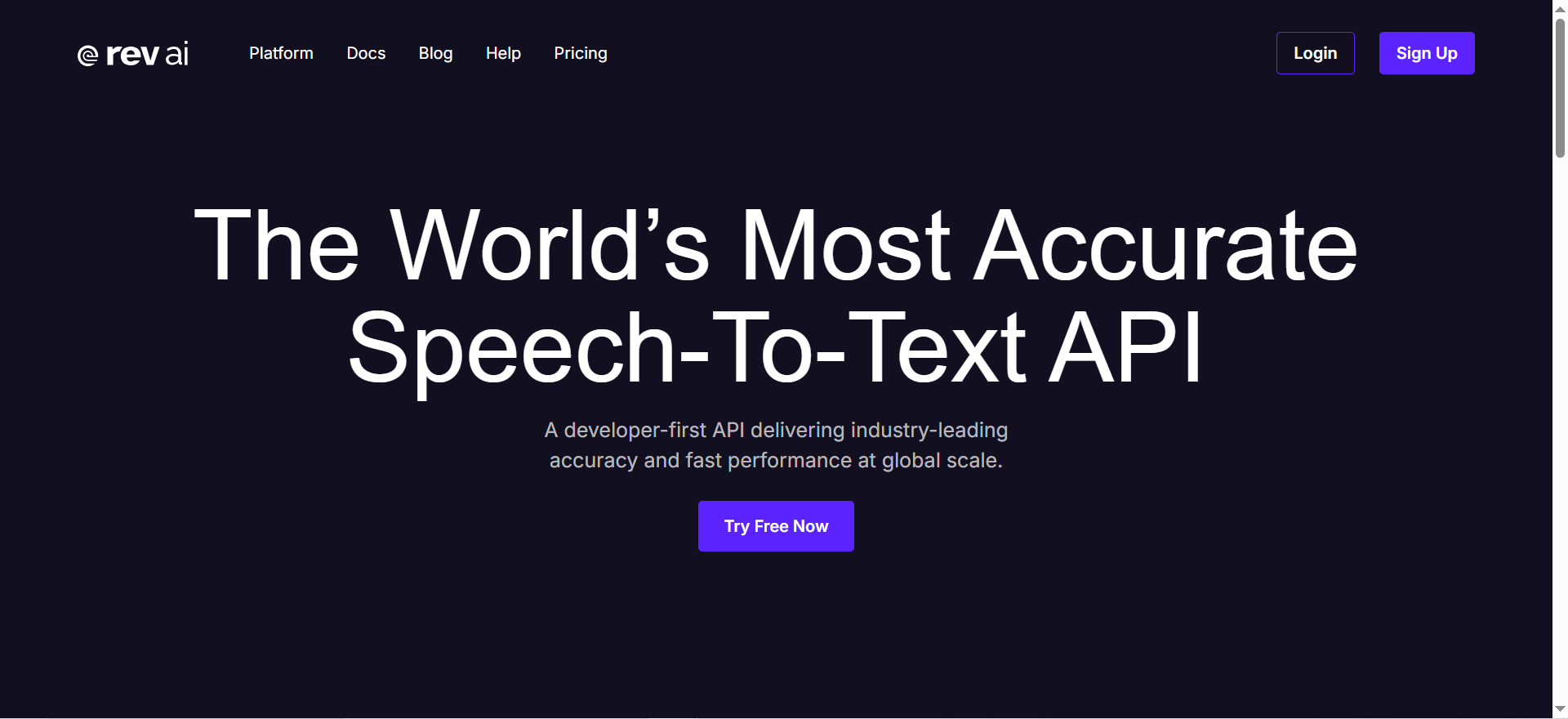
Rev is a transcription and captioning service that combines AI-powered automatic transcription with optional human verification. The platform generates captions from audio and video files and outputs them in SRT, VTT, SCC, and burned-in formats. Rev also offers an AI Notetaker for meetings, translated subtitles, and an API for developers who need transcription integrated into their own products.
Why Teams Use It
Teams choose Rev when caption accuracy is the non-negotiable requirement. The AI transcription claims 96%+ accuracy, and the human transcription tier pushes that to 99%. For organizations that publish captions for accessibility compliance, legal documentation, or professional media production, the accuracy gap between Rev and consumer-grade auto caption tools is significant enough to justify the cost. Understanding best AI audio transcription practices can further enhance your workflow.
What It Is Good For
Rev is good for any workflow where the caption file is the primary deliverable, not a visual overlay on a social video. Podcast producers who need accurate transcripts for show notes and SEO. Video production teams that need SRT files for YouTube, Vimeo, or OTT platforms. Accessibility teams that must meet WCAG compliance standards. Legal and medical teams that need verified transcription for depositions, interviews, or patient recordings.
When It Is a Good Fit
Rev fits organizations that need high-accuracy caption files in standard formats (SRT, VTT, SCC) and do not need built-in video editing. It is a good fit for teams that process a large volume of audio and video content and want pay-per-minute pricing instead of a monthly subscription. The API makes Rev a strong choice for developers building captioning into SaaS products or internal tools. If your workflow is upload-transcribe-download with minimal styling needs, Rev is efficient and reliable.
When It Is Not a Good Fit
Rev is not the right choice if you need styled, animated captions burned into social video. There is no visual caption editor, no templates, and no video editing features. The per-minute pricing can add up quickly for teams processing hours of content daily. Translated subtitle pricing ($6.49-$15.99/minute) is significantly more expensive than tools like VEED or Descript that include translation in their subscription plans. If your primary need is social-first captioned video, Rev is the wrong tool.
How to Use It
Upload your audio or video file to Rev (or use the API). Choose between AI transcription ($0.25/minute) or human transcription ($1.99/minute). Rev processes the file and returns a transcript with timestamps. Download the output as SRT, VTT, SCC, or plain text. For burned-in captions, select that option at export. The AI Notetaker can join Google Meet, Zoom, and Teams calls to transcribe meetings automatically.
Key Capabilities
AI transcription at 96%+ accuracy. Human transcription at 99% accuracy. Output in SRT, VTT, SCC, and burned-in formats. AI Notetaker for Google Meet, Zoom, and Teams with instant summaries and action items. Translated subtitles (beta) with side-by-side foreign language translation. Developer API for integration. Speaker identification. Timestamp-level editing.
Pricing
AI transcription: $0.25 per audio minute. Human transcription: $1.99 per audio minute. AI captions: $0.25 per audio minute. Human-verified captions: $1.99 per audio minute. Translated subtitles: $6.49-$15.99 per minute depending on language. Free tier: 45 minutes of AI transcription per month. Subscription plans available for higher volume.
Free Tier?
Yes. Free users get 45 minutes of AI transcription per month. This is enough to test accuracy on a handful of videos but will not cover ongoing production needs.
Downsides and Limitations
No video editing features. No visual caption styling or animation. Per-minute pricing creates unpredictable costs for high-volume teams. Translated subtitle pricing is expensive compared to subscription-based alternatives. The platform is focused on transcription accuracy, not content creation, so it requires pairing with a separate video editor for social content workflows. The free tier is generous for testing but insufficient for regular use.
5. Subtitle Edit
What It Does
Subtitle Edit is a free, open-source desktop application for creating, editing, synchronizing, and converting subtitle files. It supports over 300 subtitle formats, offers both graphical waveform-based and text-based editing views, and includes tools for translation, spellcheck, and timing adjustment down to the millisecond. It runs on Windows natively and on Linux via compatibility layers.
Why Teams Use It
Professional subtitlers, translators, and post-production teams use Subtitle Edit because it offers the most granular control over caption timing and formatting of any tool in this comparison. When a project requires millisecond-accurate timing, support for obscure subtitle formats, or integration with professional translation workflows, Subtitle Edit is the standard. It is also completely free with no subscriptions, usage limits, or watermarks.
What It Is Good For
Subtitle Edit is good for professional subtitle creation for film, television, and documentary production. Translators working across multiple languages benefit from the extensive format support and translation API integrations. Post-production houses that receive raw transcript files and need to time them precisely to video use the waveform editor. Any workflow that involves converting between subtitle formats (SRT to STL, VTT to SCC, etc.) is faster in Subtitle Edit than any other tool.
When It Is a Good Fit
Subtitle Edit fits professional subtitlers, translators, and post-production teams that need precise manual control over every aspect of the caption file. It is a good fit for teams with existing video editing pipelines (Adobe Premiere Pro, DaVinci Resolve, Final Cut) that need a dedicated subtitling tool rather than an all-in-one editor. Budget-constrained teams that process high volumes of subtitles benefit from the zero-cost model.
When It Is Not a Good Fit
Subtitle Edit is not the right choice for teams that need auto-captioning from AI transcription (it does not include built-in speech-to-text, though it supports external translation APIs). There is no video editing, no visual caption overlay preview in the way VEED or Descript offer, and no social media templates. The interface is functional but not modern, which creates a learning curve for users accustomed to browser-based tools. It does not run natively on macOS (though the v5.0 beta adds macOS ARM64 support).
How to Use It
Download Subtitle Edit from nikse.dk or GitHub. Open your video file alongside a new or existing subtitle file. Use the waveform view to visually align captions to audio peaks. Edit text in the list view, adjust timing with millisecond precision, run spellcheck, and export in your target format. For translation workflows, use the built-in translation helper or connect to external translation APIs. The portable version requires no installation.
Key Capabilities
Support for 300+ subtitle formats. Graphical waveform-based timing editor. Text-based list editor with batch operations. Millisecond-precision timing adjustment. Translation helper with external API support. Spellcheck and grammar tools. Format conversion (SRT, VTT, STL, SCC, ASS, SSA, and hundreds more). Plugin support. Portable version available. Active open-source development with frequent updates (v5.0 beta released April 2026).
Pricing
Free. Subtitle Edit is open-source software released under the GNU General Public License. There are no paid plans, no premium features, and no usage limits.
Free Tier?
Yes. The entire application is free with no restrictions. There is no paid tier.
Downsides and Limitations
No built-in AI transcription or auto-captioning (requires external transcript input). No video editing features. No visual caption overlay or styling preview in the video. The interface is dated compared to modern web-based tools. Windows-first, with macOS support only in beta as of April 2026. The learning curve is steeper than consumer tools. No cloud collaboration features.
How Do AI Captions Work and Why Do They Matter for Video Marketing
AI captions use automatic speech recognition (ASR) to convert spoken audio into time-stamped text that overlays on video. The process involves three stages: audio extraction, speech-to-text transcription using trained language models, and timestamp alignment so each word appears at the right moment.
For video marketing teams, captions matter because they directly affect reach and engagement. Most social media videos are watched with sound off, especially on LinkedIn, Instagram, and Facebook feeds. Videos with captions see higher completion rates because viewers can follow the content without audio. Captions also improve accessibility for deaf and hard-of-hearing audiences, which is both a legal requirement in many industries and a genuine audience expansion. Exploring best AI video generator tools can help teams streamline the entire video creation and captioning workflow.
From an SEO perspective, captions generate indexable text content from video. Platforms like YouTube use caption files to understand video content and serve it in search results. Publishing an accurate SRT file alongside your video gives search engines and AI systems more context to work with, which improves discoverability for both traditional search and AI-powered recommendations.
What Is the Difference Between Captions and Subtitles
Captions and subtitles serve different purposes even though they look similar on screen. Captions are designed for viewers who cannot hear the audio. They include not just spoken dialogue but also sound effects, music cues, and speaker identification. Closed captions can be toggled on and off by the viewer, while open captions (burned-in) are permanently part of the video.
Subtitles assume the viewer can hear the audio but may not understand the language. They translate spoken dialogue into another language and typically do not include non-speech audio descriptions. For teams managing multilingual subtitle workflows, our guide to best AI subtitle generator tools covers dedicated solutions.
For marketing teams, the distinction matters when choosing tools. If you need burned-in captions for social media, VEED, Descript, and CapCut handle this well. If you need closed caption files (SRT, VTT) for YouTube or compliance, Rev AI and Subtitle Edit produce more accurate output in standardized formats.
Which AI Caption Tool Has the Best Accuracy
Accuracy varies significantly based on audio quality, speaker accent, vocabulary, and background noise. In controlled conditions with clear audio:
Rev AI consistently scores highest at 96%+ accuracy for AI transcription and 99% with human verification. This makes it the safest choice for compliance-critical content.
VEED claims 97%+ accuracy in tests and handles multiple languages well, though accuracy drops with overlapping speakers or heavy accents.
Descript delivers strong accuracy for English content and improves over time as you correct errors in the transcript editor. The text-editing workflow makes corrections faster than re-timing individual caption blocks.
CapCut performs well with clear, standard-paced audio but requires more manual correction than the others, especially with technical vocabulary or fast speech.
Subtitle Edit does not include AI transcription, so accuracy depends entirely on the source transcript you import.
For most marketing teams, VEED or Descript provide the best balance of accuracy and workflow speed. For teams that cannot tolerate errors (legal, medical, accessibility compliance), Rev AI with human verification is the clear choice.
How to Add Captions to Videos for Social Media
The workflow depends on which tool you choose, but the general process follows the same pattern.
First, prepare your video file. Trim it to the final length before adding captions so you avoid re-syncing later. Export the best quality audio possible since caption accuracy depends on clean input.
Second, generate the transcript. In VEED, Descript, or CapCut, this happens automatically when you upload the video and select the auto-caption feature. In Rev AI, you upload the file and download the caption file when it is ready. In Subtitle Edit, you import an existing transcript.
Third, review and correct. Every AI captioning tool makes errors. Budget 5-10 minutes per video for review, depending on length. Pay attention to proper nouns, brand names, and technical terms.
Fourth, style the captions. On social platforms, bold, animated captions with color highlighting perform better than plain white text. VEED and CapCut offer the most social-optimized templates. Descript has solid customization but fewer trendy styles.
Fifth, export and publish. For platforms that accept caption files (YouTube, LinkedIn), export both the video and a separate SRT or VTT file. For platforms that display burned-in captions better (TikTok, Instagram Reels), export with captions embedded in the video. Teams producing high volumes of Reels and TikTok content may also want to review the best AI video generator for TikTok to optimize their end-to-end workflow.
Are Free AI Caption Generators Good Enough for Professional Use
It depends on what professional use means for your workflow.
CapCut's free plan is genuinely useful for basic short-form captioning, but the accuracy limitations and potential watermarks make it unsuitable for branded content at scale. The lack of advanced caption features on the free tier means you will hit a ceiling quickly.
Descript's free plan gives you 60 minutes per month, which is enough for 2-3 short videos. The full caption workflow is available, so you can test production quality before committing. But 60 minutes is not enough for regular content production.
VEED's free plan adds a watermark to all exports, which immediately disqualifies it for any professional or branded use. It is purely a testing tier.
Rev AI's free 45 minutes is generous for testing accuracy but will not sustain a production workflow.
Subtitle Edit is fully free with no restrictions, but it requires manual work and does not include AI transcription.
The honest answer: free tiers are useful for evaluation and occasional use, not for sustained professional content production. Budget at least $12-24/month for a tool that removes watermarks, provides reliable accuracy, and supports your output volume.
How to Choose the Right AI Caption Tool for Your Team
Start with your primary output format. If you produce short-form social video, VEED or CapCut are the strongest fit. If you produce long-form content or podcasts, Descript is the better all-in-one choice. If you need caption files for compliance or multi-platform distribution, Rev AI gives you the most reliable accuracy.
Next, consider your team size and workflow. Solo creators can get by with CapCut (free) or VEED (Lite at $12/mo). Teams of 2-5 people benefit from Descript's collaboration features or VEED's Pro plan. Enterprise teams with compliance requirements should evaluate Rev AI's human verification tier or Subtitle Edit for manual control.
Budget is the final filter. If cost is the primary constraint, CapCut (free) and Subtitle Edit (free) cover the basics. Mid-range budgets ($12-35/month) are well served by VEED or Descript. High-accuracy requirements with per-minute pricing (Rev AI) can add up, so estimate your monthly volume before committing.
The right tool is the one that fits your actual workflow without creating extra steps, extra cost, or extra manual review. Test your top two picks on real content for a week before making a final decision.
Frequently Asked Questions
Rev AI offers the highest accuracy at 96%+ for AI transcription and 99% with human verification. For most marketing use cases, VEED and Descript provide sufficient accuracy (95%+) with faster, more visual workflows. Accuracy depends heavily on audio quality, so clean recording environments matter as much as tool choice.
Yes. All five tools in this guide support YouTube captioning. Descript, VEED, and Rev AI can export SRT and VTT files that you upload directly to YouTube Studio. CapCut can export captioned video for upload. YouTube also has its own auto-caption feature, but third-party tools typically produce more accurate and better-styled results.
Yes, but coverage varies. VEED supports 125+ languages for transcription. Descript supports caption translation in 61 languages with audio dubbing in 30+. Rev AI supports 38+ languages. CapCut supports 20+ languages. Subtitle Edit supports any language you can type, since it is a manual editor, and it handles 300+ subtitle formats.
Burned-in captions are generally better for social media because they appear regardless of platform settings and can be styled to match your brand. SRT files are better for YouTube and accessibility compliance because viewers can toggle them on or off and platforms can auto-translate them. Many teams use both: burned-in for TikTok and Reels, SRT for YouTube and LinkedIn.
CapCut and Subtitle Edit are free. VEED starts at $12/month. Descript starts at $24/month. Rev AI charges $0.25 per audio minute (or roughly $15/hour of content). For a team producing 10 hours of video content per month, expect $0 (CapCut free), $12-29 (VEED), $24-65 (Descript), or $150+ (Rev AI) depending on plan and volume.
AI captions alone typically do not meet WCAG or ADA compliance standards because they contain errors. For compliance, use Rev AI's human verification tier (99% accuracy) or generate AI captions and manually review every line. Subtitle Edit is the best tool for making granular corrections to caption files before submission. Always test captions against your specific compliance requirements rather than relying on vendor accuracy claims.