Best AI Subtitle Generator
A practical buyer's guide to picking the right ai subtitle generator stack for audio and video creation across content and social.


This playbook helps content managers and growth marketers compare the best ai subtitle generator options for audio and video creation. It breaks down where descript, veed stand out, when alternatives such as heygen, synthesia make more sense, and which setup fits B2B companies and B2C brands and solo operators and small businesses.
TL;DR
Subtitles boost video views by 40% and AI can transcribe content 80-90% faster than manual methods. If you need one tool that handles everything, Descript is best for creators and teams. For browser-based simplicity, VEED wins. CapCut dominates for short-form social content (though prices jumped in 2026). Rev AI is the accuracy champion for professional work. Subtitle Edit is completely free and private—but requires patience to learn. Choose based on your workflow: all-in-one, web browser, social media, professional quality, or open-source freedom. If your primary need is AI-generated captions rather than full subtitle files, see our dedicated comparison.
Table of Contents
Best AI Subtitle Generators (Quick Comparison)
| Tool | Best For | Starting Price | Key Strength |
|---|---|---|---|
| Descript | All-in-one video editing + subtitles | Free (1hr/mo) | Text-based editing, 60-70% faster |
| VEED | Browser-based video + subtitles | Free (720p, watermark) | 125+ languages, dubbing support |
| CapCut | Short-form social media | Free (10min/project) | 12M+ asset library, mobile sync |
| Rev AI | Professional transcription | $0.25/min | 96%+ accuracy, human review option |
| Subtitle Edit | Complete local control | Free, open-source | 300+ formats, zero watermarks |
Best AI Subtitle Generators (Quick Comparison)
Tool #1: Descript
What it does
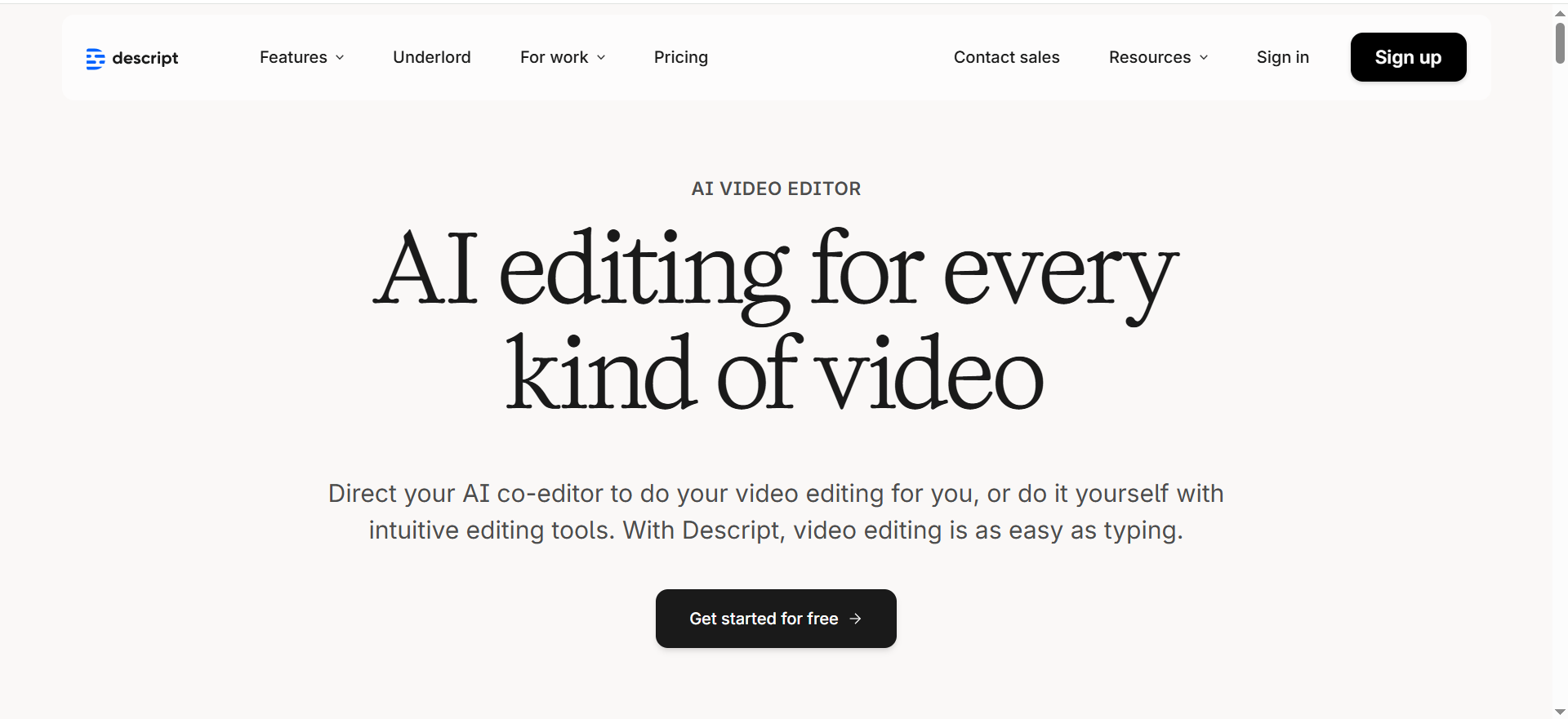
Descript is an all-in-one video and audio editor that treats your media as text. You can edit videos by editing the transcript itself—delete words from the transcript and the video edits automatically. Subtitles are generated from the transcribed text and can be burned directly into your video or exported as SRT files.
Why teams use it
Teams use Descript because it replaces 3-5 separate tools (video editor, transcriber, subtitle generator, audio editor, screen recorder). Most users save $200-400 annually in tool costs. The text-based editing workflow reduces editing time by 60-70%, which matters when you're producing multiple videos per week.
What it's good for
Descript excels at podcast editing, YouTube video production, internal company videos, and any scenario where you need clean subtitles quickly. The ability to edit video by editing text is genuinely faster than timeline editing for most people. It handles SRT export and burn-in subtitles for both.
When it's a good fit
Choose Descript if you're already editing video and audio in desktop software. If your team values speed and integrated workflows, or if you want transcription + editing + subtitles in one place, Descript is worth the cost. It's particularly good for creators who ship multiple videos weekly.
When it's not a good fit
Descript struggles with accents and technical terminology, which means accuracy drops below 95% on specialized content. There's no mobile app, so you're locked to desktop. The free tier only includes 1 hour/month of transcription, which isn't much. If you need deep video effects or motion graphics, dedicated video software will do more.
How to use it
Upload your video or audio file. Descript transcribes it automatically and shows a text transcript alongside the timeline. Edit the text (delete words, fix errors), and the video cuts accordingly. Highlight sections you want subtitled, choose your style, and export as SRT or burn directly into the video. Turnaround time is typically 5-15 minutes for a 30-minute video.
Key capabilities
- 95% transcription accuracy across 25+ languages
- Text-based video editing (delete words = video cuts)
- Automatic speaker identification
- SRT export or burn-in subtitles with brand styling
- Filler word removal
- Screen recording built-in
- Collaboration features for teams
Pricing
Free ($0, 1 hour/month transcription), Hobbyist ($16/mo annual), Creator ($24/mo annual), Business ($50/mo annual), Enterprise (custom pricing). The Hobbyist tier unlocks 10 hours/month.
Free tier?
Yes. Includes 1 hour/month of transcription and full editing access. Limited but useful for testing the workflow.
Downsides / limitations
The free tier is very restricted (1 hour/month). Accuracy drops noticeably on accents and technical terms. Advanced AI features consume monthly transcription credits, so heavy users burn through free time quickly. Customization options for subtitles are limited compared to dedicated subtitle software. No mobile app means you're desktop-only.
Tool #2: VEED
What it does
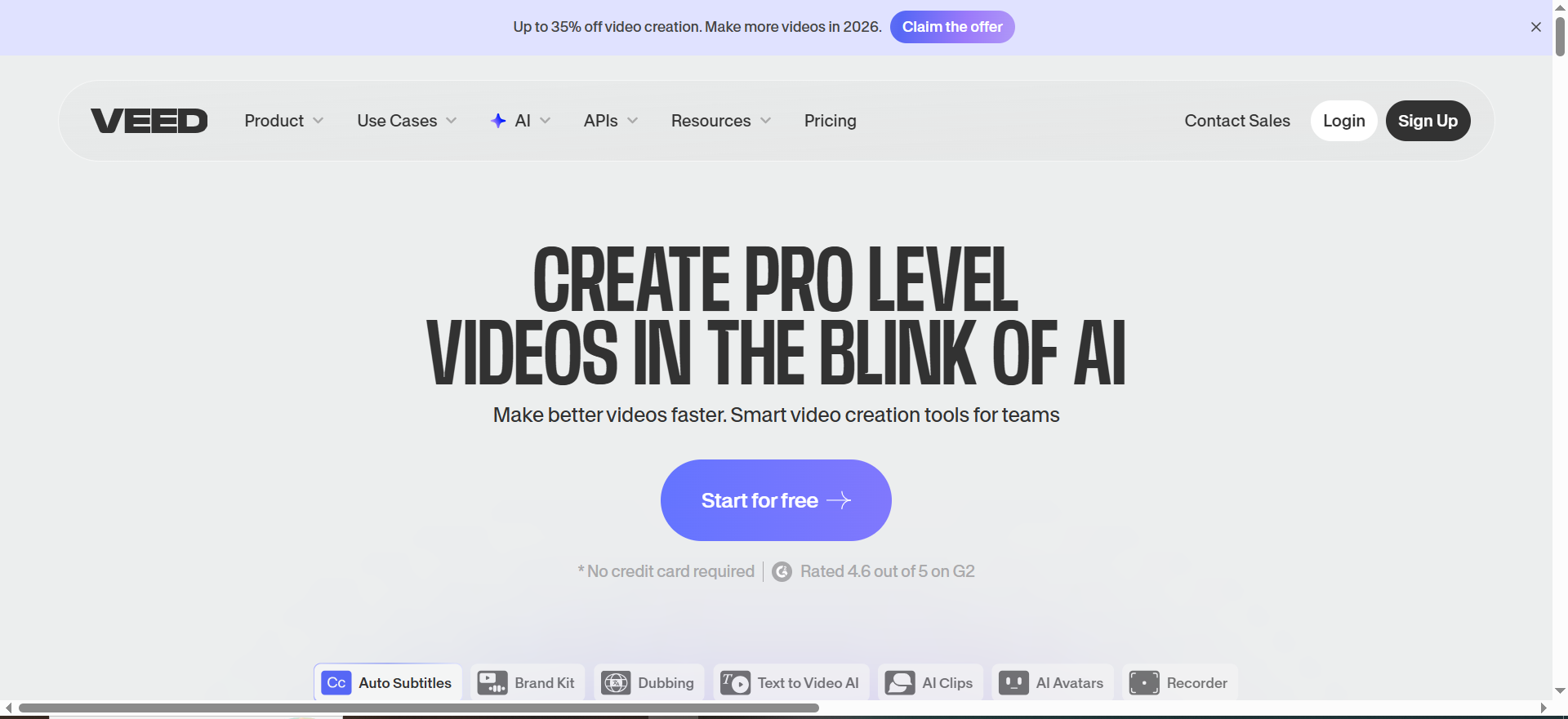
VEED is a browser-based video editor with built-in AI transcription and subtitle generation. Upload a video, get automatic captions in 125+ languages, tweak them, and export. No software installation required—everything happens in your web browser.
Why teams use it
Teams love VEED because there's literally nothing to install and no learning curve. Open a browser, upload a video, wait for captions, and download. It's popular with marketing teams that need subtitles fast and don't want to manage software licenses across multiple computers. The localization features (dubbing, translation) mean you can reach international audiences in minutes.
What it's good for
VEED is built for video marketers, social media managers, and anyone who edits in the browser. It's excellent for turning English content into subtitled versions in 50+ languages. Production cycles typically drop by 60% because everything is cloud-based and fast. Dubbing and translation in bulk are possible, making it a go-to for global teams.
When it's a good fit
Use VEED if you prefer browser-based tools and don't want to install software. If you need strong localization features (dubbing, translation), VEED is significantly better than Descript. Teams managing multiple editors across different devices will appreciate the no-installation approach. The free tier is genuinely useful for testing.
When it's not a good fit
VEED has documented performance issues—buffering and sluggishness on longer videos are common complaints. Transcription accuracy is inconsistent for professional use cases (some users report errors that need heavy editing). Customer support is poor. The Pro tier ($49/mo) is expensive for features like unlimited Gen-AI and 4K export. If you're editing professionally and need reliability, budget for the Pro tier or pick another tool.
How to use it
Open VEED in your browser. Upload your video. VEED automatically transcribes it and generates subtitles. Review and edit the captions in the editor (easy drag-and-drop interface). Export as SRT, VTT, TXT, or burned-in. Turnaround: 2-10 minutes depending on video length.
Key capabilities
- 125+ languages supported
- 95%+ transcription accuracy (inconsistent on complex audio)
- Dubbing in 50+ languages
- Translation of subtitles
- SRT, VTT, TXT export formats
- Burned-in subtitles
- Minimal editing UI (very beginner-friendly)
- No download or installation
Pricing
Free (watermarked, 720p, 10-minute limit, 2GB storage), Lite ($19/mo per editor, 1080p, 12 hours captions/month), Pro ($49/mo, 4K, unlimited Gen-AI, 50+ language translation), Enterprise (custom). Annual billing saves 30–40%.
Free tier?
Yes. Watermark, 720p resolution, 10-minute video limit, 2GB storage. Enough to test the tool, not for production.
Downsides / limitations
Performance and buffering issues on longer videos are real. Transcription inconsistency means you'll spend time correcting errors on complex audio. Poor customer support makes troubleshooting slow. The Pro tier is expensive relative to competitors. Subtitle customization is basic compared to dedicated tools. 720p and 10-minute limits on free tier are restrictive.
Tool #3: CapCut
What it does
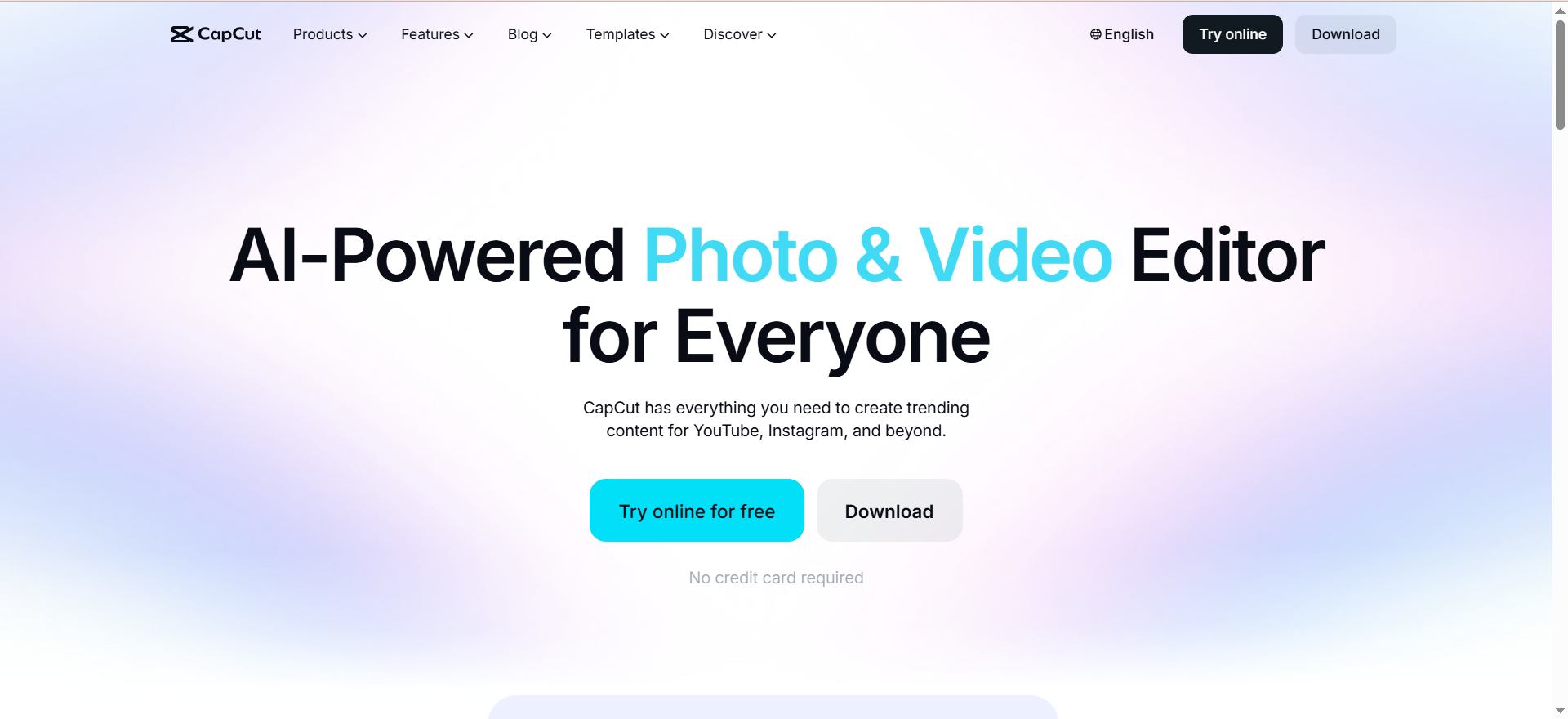
CapCut is a mobile and desktop video editor designed for short-form content. It includes AI transcription with automatic subtitle generation, speaker identification, and filler word removal. Subtitles can be styled and burned into videos or exported. It's tightly integrated with TikTok, Instagram, and YouTube Shorts.
Why teams use it
CapCut exploded in popularity because it's genuinely easy and fast. Mobile creators love the 12+ million royalty-free assets (music, effects, templates) built in. Automatic captions + speaker ID + one-click styling means you can subtitle a 60-second video in under two minutes. The free tier is genuinely useful, and pricing was reasonable—until mid-2025, when prices increased significantly.
What it's good for
CapCut is unbeatable for TikTok, Instagram Reels, and YouTube Shorts. The huge asset library and motion tracking make it the fastest tool for social media content. Cross-device sync (edit on mobile, finish on desktop) is smooth. If you're creating 3-5 short videos per week, CapCut is probably your fastest option.
When it's a good fit
Choose CapCut if you're a content creator focused on short-form, social-first video. If you value speed and love the native mobile editor, CapCut's subscription is worth it—but only at old pricing. The asset library alone justifies the cost for prolific creators. Desktop and mobile sync is genuinely useful.
When it's not a good fit
CapCut isn't suitable for long-form content or professional work. In mid-2025, CapCut raised prices significantly (Standard from $4.99 to $9.99, Pro from $9.99 to $19.99), and moved many free features behind paywalls. The 10-minute auto-caption limit on free tier is frustrating. If you're creating one or two videos monthly, the subscription isn't worth it.
How to use it
Open CapCut, import your video. Tap "Captions" and select "Auto Caption." CapCut transcribes and generates subtitles in seconds. Apply a style template (70+ built-in styles), adjust timing if needed, and export. Mobile users sync to desktop for final touches. Turnaround: 2-5 minutes for a 60-second video.
Key capabilities
- Automatic transcription and caption generation
- Speaker identification
- Filler word removal (ums, ahs, pauses)
- 12M+ royalty-free assets
- 70+ caption styling templates
- 4K export (Pro tier)
- Motion tracking
- Cross-device sync (mobile to desktop)
- TikTok/Instagram/YouTube native export
Pricing
Free (basic, 10-minute auto-caption limit per project), Standard ($9.99/mo), Pro ($19.99/mo). Prices were raised in mid-2025 (significantly increased from previous rates). Annual plans available at discount.
Free tier?
Yes. Auto captions work but limited to 10 minutes per project. Watermark included. Good for testing.
Downsides / limitations
Prices increased significantly in 2025, making it less competitive. Many free features moved behind the paywall, frustrating long-time users. The 10-minute caption limit on free tier is restrictive. Desktop app is less polished than mobile. Long-form video support is weak. Primarily consumer-focused, not professional-grade.
Tool #4: Rev AI
What it does
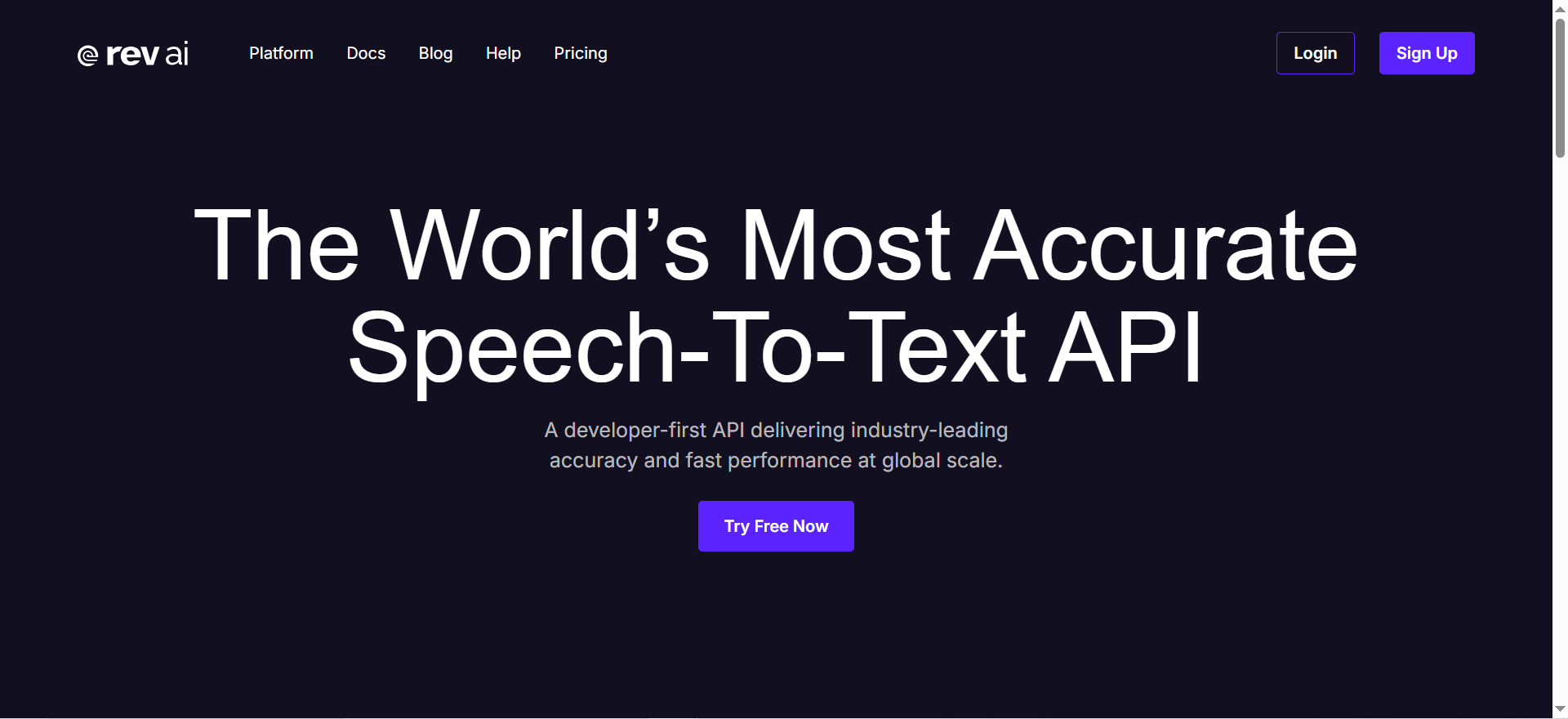
Rev AI is a transcription and subtitle service that prioritizes accuracy. You upload video or audio, choose between AI transcription, human review, or AI + human verification. Get back SRT, VTT, SCC, or burned-in subtitles. It's built for professional workflows where accuracy matters more than speed.
Why teams use it
Broadcast networks, law firms, and corporate training teams use Rev because accuracy is guaranteed at 96%+. The hybrid AI + human review option eliminates the guesswork. Pay-per-minute pricing means you only pay for what you use—no monthly subscription unless you want one. The API is available for bulk operations.
What it's good for
Rev AI is best for professional transcription, legal depositions, medical content, interviews, and anything where errors are costly. If your business depends on transcription accuracy, Rev AI's guarantee (96%+ with human review) is worth the premium. API access is great for teams processing hundreds of videos monthly.
When it's a good fit
Choose Rev if accuracy is non-negotiable and you can't afford errors. For legal, medical, or broadcast content, the human review option ($1.99/min) is cheaper than liability from bad captions. If you're doing bulk subtitling, the API saves time. Enterprise teams benefit from flexible pay-per-minute models.
When it's not a good fit
Rev gets expensive at scale. AI captions alone ($0.25/min) are cheap, but human-verified ($1.99/min) adds up fast. A 60-minute video costs $119.40 for human review. Translated subtitles ($6.49-$15.99/min) are pricey. Rev has no built-in video editor, so you're managing files separately. Human review adds 24-48 hours to turnaround.
How to use it
Upload video or audio file to Rev AI. Select transcription type (AI, human, or hybrid). Set language and output format (SRT, VTT, SCC, burned-in). Submit. For AI-only: download in 5-15 minutes. For human review: 24-48 hours. Use the output directly or import into your editor.
Key capabilities
- 96%+ accuracy guaranteed (AI + human option)
- 4 output formats (SRT, VTT, SCC, burned-in)
- 50+ languages supported
- Human transcription available
- Translated subtitles (pricey but available)
- API for bulk operations
- Timestamp accuracy within 100ms
- Suitable for broadcast and legal use
Pricing
AI captions: $0.25/min. Human-verified: $1.99/min. Translated subtitles: $6.49-$15.99/min. Free tier: 45 minutes/month. Subscription plans available for heavy users (discounted rates at volume).
Free tier?
Yes. 45 minutes/month of AI transcription. Good for occasional users.
Downsides / limitations
Gets expensive at scale (human review is $1.99/min). Translated subtitles are very pricey. No built-in video editor means managing files separately. Human review adds 24-48 hours to timeline. Overkill for casual creators. Free tier (45 min/month) is quite limited.
Tool #5: Subtitle Edit
What it does
Subtitle Edit is a free, open-source desktop application for creating, editing, and syncing subtitles. It supports 300+ subtitle formats and includes local Whisper AI transcription and OCR via Tesseract. Everything runs on your computer—no cloud, no accounts, no fees.
Why teams use it
Privacy-focused teams, indie developers, and budget-conscious creators use Subtitle Edit because it's completely free and runs locally. There are zero watermarks, zero limits, and zero privacy concerns. You own your files entirely. It's the only tool here that doesn't require internet for core functions (Whisper AI runs locally).
What it's good for
Subtitle Edit is best for creators who value privacy, have tight budgets, and don't mind spending time learning a tool. It excels at format conversion (convert between 300+ subtitle formats instantly). Waveform editing with visual sync is powerful for precise timing. Local processing means your transcripts never leave your computer.
When it's a good fit
Choose Subtitle Edit if privacy is important, you have no budget, or you need to convert between obscure subtitle formats. Indie game developers, privacy-conscious creators, and teams with security requirements will appreciate the local-only approach. If you already know video production workflows, the learning curve is manageable.
When it's not a good fit
Subtitle Edit has a steep learning curve and a dated user interface. There's no collaboration (it's desktop-only), no cloud sync, and no mobile app. Workflow is manual—you're not dragging and dropping in a browser. The Whisper transcription is local but slower than cloud alternatives. If you need subtitles in 5 minutes, this isn't it. Windows is native; Linux requires Avalonia (community port).
How to use it
Download Subtitle Edit (Windows native, Linux via Avalonia). Import your video or audio. Use the Whisper transcription feature to generate initial captions. Edit timing and text using the waveform editor (visual sync). Export to your desired format (SRT, VTT, ASS, SUB, etc.). Turnaround: 15-45 minutes depending on your comfort level.
Key capabilities
- 300+ subtitle format support
- Local Whisper AI transcription
- OCR for image-based subtitles (Tesseract)
- Waveform-based timing and sync
- Batch conversion between formats
- Zero watermarks
- Zero file limits
- Runs entirely offline
- GPL v3 open-source license
Pricing
Completely free. Open-source, GPL v3 license. No hidden costs, no premium tiers.
Free tier?
It's 100% free forever. No tier system.
Downsides / limitations
Very steep learning curve for non-technical users. Desktop-only (Windows native, Linux via community port). No cloud storage or collaboration. Manual workflow—everything is hands-on. Whisper transcription is slower than cloud services. UI is dated and unintuitive. No built-in video editor. Batch operations require command-line knowledge. Community support is small compared to commercial tools.
How to Choose the Right AI Subtitle Generator
The best tool depends on your workflow, budget, and how much time you have. Ask yourself these questions:
How much time do you have? If you need subtitles in 5 minutes, use VEED (browser) or CapCut (mobile). If you have 30 minutes, Descript or Rev AI work. If you have hours, Subtitle Edit is fine.
What's your budget? If $0 is your budget, Subtitle Edit or the free tiers of CapCut/VEED work. If you're willing to spend $20-50/month, Descript or VEED Pro are all-in-one. If accuracy is critical, Rev AI's pay-per-minute model scales with your needs.
Do you need a video editor too? Descript and CapCut bundle editing with subtitles. VEED offers light editing. Rev AI and Subtitle Edit are transcription-only (you edit elsewhere).
How important is accuracy? Rev AI is 96%+ guaranteed. Descript and VEED are 95%+. CapCut is decent but inconsistent. Subtitle Edit depends on your audio quality.
Do you need localization? VEED excels at dubbing and translation. Descript handles 25+ languages but less sophisticated. Rev AI offers translation but at premium pricing. CapCut and Subtitle Edit are less localization-focused.
Privacy matters? Subtitle Edit is the only local-only option. Everything else uses cloud services.
Mobile-first workflow? CapCut dominates. VEED is browser-based (works on mobile). Others are desktop-first.
What Makes a Good AI Subtitle Tool in 2026
The best tools share common traits:
Speed. Subtitles should generate in 5-15 minutes for most videos. Anything slower frustrates creators.
Accuracy. 90-99% accuracy on clear audio is the standard. Accuracy drops with accents, background noise, and technical terms.
Format flexibility. SRT and VTT are mandatory. SCC, ASS, SUB, and burned-in options matter for professional work.
Export options. You should be able to export as files, burn into video, or send directly to social platforms.
Affordability. Free tiers or pay-per-use models (not forced subscriptions) are increasingly expected.
Ease of use. If your team can't use it, it doesn't matter how accurate it is. Browser-based tools win here.
Language support. 25+ languages minimum. 100+ is increasingly standard.
No watermarks. Watermarked free tiers are expected, but watermarks on paid tiers are unacceptable.
How Accurate Are AI Subtitle Generators?
Modern AI subtitle generators achieve 90-99% accuracy on clear, spoken English. Accuracy drops significantly with accents, background noise, overlapping speakers, and technical jargon. Rev AI guarantees 96%+ accuracy with their AI + human hybrid option. Descript and VEED claim 95%+. CapCut is less transparent but generally solid on clean audio. Accuracy varies more by audio quality than by tool—poor audio will stump any AI transcriber.
Can AI Generate Subtitles in Multiple Languages?
Yes. Most tools support 25+ languages natively, and many offer translation services. VEED supports 125+ languages and includes dubbing. Descript handles 25+ languages. Rev AI offers translated subtitles (expensive). CapCut supports major languages. Subtitle Edit relies on your Whisper model (supports 99+ languages). Translation quality varies—professional translation (Rev AI, VEED) is better than machine translation (most others).
What Is the Best Free AI Subtitle Generator?
For browser simplicity: VEED free tier (watermark, 720p, 10-min limit). For mobile creators: CapCut free tier (10-min auto-caption limit per project). For desktop power users: Subtitle Edit (100% free, open-source, no limits). For one-tool solution: Descript free tier (1 hour/month transcription, full editing). Best overall depends on your platform—mobile creators pick CapCut, desktop users pick Subtitle Edit, browser users pick VEED.
Do AI Subtitles Work With YouTube?
Yes. All tools export SRT format, which YouTube accepts directly. YouTube's own auto-caption feature is free but lower quality than these tools. You can upload SRT files via YouTube Studio, and YouTube will display them as captions. Some tools (Descript, VEED) can burn captions directly into the video file before uploading. Rev AI outputs SCC format, which YouTube also accepts. Only limitation: YouTube requires 15+ minutes of video for certain caption monetization features.
How Do AI Subtitle Generators Handle Accents?
Poorly. All AI tools struggle with strong accents, non-native speakers, and regional dialects. Accuracy typically drops 10-30% compared to standard English. Rev AI's human review option is the most reliable (costs $1.99/min). Descript drops to below 95% accuracy. Subtitle Edit's accuracy depends on audio quality and the Whisper model used (local models can be worse than cloud versions). Solution: always review subtitles for accent-heavy content and edit manually.
Can I Edit AI-Generated Subtitles?
Yes, all tools include subtitle editors. VEED and CapCut have the easiest interfaces. Descript edits by editing the transcript (indirect). Subtitle Edit has waveform editing (powerful but steep learning curve). Rev AI provides plain text files you edit in notepad. You can always fix timing, correct words, and adjust styling. Most creators spend 5-15 minutes reviewing and tweaking auto-generated subtitles.
How Long Does AI Subtitle Generation Take?
Most tools generate subtitles in 2-15 minutes depending on video length. VEED and CapCut are fastest (2-5 min). Descript and Rev AI are medium (5-15 min). Subtitle Edit's local processing is slower (10-30 min). Human review (Rev AI) adds 24-48 hours. Burned-in subtitles add 5-10 extra minutes for rendering.
Do AI Subtitle Generators Work Offline?
Only Subtitle Edit runs entirely offline (local Whisper AI). All others (Descript, VEED, CapCut, Rev AI) require cloud processing and internet connection. Subtitle Edit is the privacy-focused choice if you can't upload files to the cloud.
How Much Does It Cost to Subtitle 100 Videos?
Descript: $24/mo (Creator tier) = approximately $0.24/video. VEED: $49/mo Pro = approximately $0.49/video (or free with watermark). CapCut: $19.99/mo Pro = approximately $0.20/video. Rev AI: $0.25/min AI = approximately $1.50-3/video (assuming 6-12 min average). Subtitle Edit: $0 forever. Rev AI's human review ($1.99/min) costs $12-24 per video. For bulk, Subtitle Edit and subscriptions win over pay-per-minute.
Can I Bulk Subtitle Videos With AI Tools?
Yes, but it depends on the tool. Descript and CapCut can batch process but are designed for single videos. VEED Pro has batch options. Rev AI's API is purpose-built for bulk operations (100+ videos). Subtitle Edit can batch convert formats but not batch transcribe. For 100+ videos, Rev AI API or building a custom Whisper pipeline is most efficient.
What Subtitle Formats Do AI Generators Output?
SRT (SubRip) and VTT (WebVTT) are universal. Most tools support both. Professional formats include SCC (Scenarist Closed Caption), ASS (Advanced SubStation Alpha), and SUB (MicroDVD). Burned-in subtitles (hardcoded into video) are supported by most. Descript outputs SRT or burned. VEED outputs SRT, VTT, TXT. Rev AI outputs SRT, VTT, SCC, burned. Subtitle Edit supports 300+ formats. YouTube prefers SRT.
Do Subtitles Improve Video Performance?
Yes, significantly. Subtitles increase watch time by 40% on average. YouTube, TikTok, and Instagram algorithms favor captions. Accessibility (deaf and hard of hearing) is a legal requirement in many regions. Silent video users (on public transit, muted) are a massive audience. SEO improves because transcripts are text-searchable. Bottom line: no subtitles = leaving 40% of engagement on the table.
How Do I Export Subtitled Videos for Social Media?
Most tools burn subtitles directly into the video file. CapCut exports natively to TikTok/Instagram Shorts. Descript and VEED burn and export to MP4. Rev AI gives you SRT, which you import into your editor. Subtitle Edit exports formats, which you import into your video editor. Final output should be H.264 MP4 (universal compatibility). Always test on the platform before publishing. If you also need AI voiceover for your videos, several of these tools integrate with voice generation services.
Can I Use AI Subtitles Commercially?
Yes. All these tools allow commercial use. Descript, VEED, CapCut, and Rev AI explicitly permit commercial subtitling. Subtitle Edit's GPL v3 license permits commercial use (open-source). No licensing restrictions on the subtitles themselves. You own the generated subtitles and can use them in products, courses, and client work.
FAQs
Burned-in subtitles are hardcoded into the video file (permanent, visible to everyone). Exported subtitles are separate files (SRT, VTT) that viewers can turn on/off. Burned-in is useful for platforms that don't support captions (some streaming sites) or when you want guaranteed visibility. Exported is better for accessibility (viewers choose font size, color) and file size.
AI is 80-90% faster and 100x cheaper. Use AI for casual content, social media, and internal videos. For dedicated meeting transcription, specialized tools may be a better fit. Use human transcription for legal documents, medical content, and broadcast where errors are costly. Rev AI's hybrid option ($1.99/min) is a good middle ground—AI speed with human accuracy.
Yes. SRT and VTT files are plain text—open in notepad and edit. All subtitle tools let you re-import and adjust timing. You can also use dedicated subtitle editors like Subtitle Edit to refine timing and formatting. No tool locks you in.
Yes. YouTube and TikTok algorithms favor captions even on short videos. 15-30 second clips benefit from captions. The 40% view boost applies to all lengths — and for faceless video content, subtitles are even more critical since there is no speaker to visually engage the viewer. Takes 2 minutes to generate, massive payoff.
You edit them. All tools provide subtitle editors. Most mistakes are minor (word choice, timing). Fix and re-export. For critical content (legal, medical), use human review (Rev AI). For casual content, 95% accuracy is fine—viewers tolerate minor errors.