Best AI For Photo Editing (2026)
Which ai options actually fit photo editing and which ones create extra cost, handoff friction, or weak output.

This playbook helps brand strategists and content managers compare the best ai options for photo editing. It breaks down where adobe-photoshop, canva-magic-studio stand out, when alternatives such as canva, adobe-express make more sense, and which setup fits B2B companies and B2C brands and solo operators and small businesses.
TL;DR
If you need the most powerful AI photo editing toolkit with generative fill, multi-model AI support, and pixel-level control, Adobe Photoshop is the clear leader — but it costs $22.99/month and has a steep learning curve. For teams that need fast, template-driven editing without design skills, Canva Magic Studio at $15/month delivers the best balance of AI features and usability. Ecommerce sellers and product photographers should look at Photoroom first — its one-tap background removal, virtual models, and batch processing are purpose-built for listings. Clipdrop is the sleeper pick for anyone who needs AI relighting or quick object cleanup at just $9/month. And Pixlr gives you browser-based generative fill and background removal starting at $1.99/month, making it the cheapest entry point in the category.
The right choice depends on your team's workflow, budget, and what "photo editing" actually means in your day-to-day. This guide breaks down each tool so you can match features to your actual needs.
Table of Contents
Best AI Tools For Photo Editing (Quick Comparison)
| Tool | Best For | Starting Price | Free Tier | Standout Feature |
|---|---|---|---|---|
| Adobe Photoshop | Professional editing with AI precision | $22.99/mo | Limited (Elements trial) | Generative Fill with multi-model AI |
| Canva Magic Studio | Non-designers and marketing teams | $0 (Free) / $15/mo (Pro) | Yes — generous | Magic Grab + template ecosystem |
| Clipdrop | Quick edits, relighting, and cleanup | $0 (Free) / $9/mo (Pro) | Yes — 15 images/mo | AI Relight (unique in category) |
| Photoroom | Product photography and ecommerce | $0 (Free) / $7.50/mo (Pro) | Yes — with watermarks | Virtual Models for apparel |
| Pixlr | Budget-friendly browser-based editing | $0 (Free) / $1.99/mo (Plus) | Yes — with watermarks | Generative Fill at lowest price |
Best AI Tools For Photo Editing (Quick Comparison)
Tool #1: Adobe Photoshop
What It Does
Adobe Photoshop is the industry-standard photo editing software, now supercharged with AI features powered by Adobe Firefly. The 2026 release (version 27.5) introduced a conversational AI assistant, multi-model support including Google Gemini 3 and Black Forest Labs FLUX.2 Pro, and Generative Fill running on Firefly Image 4 with 2K resolution output. It handles everything from basic retouching to complex compositing, generative content creation, and pixel-level manipulation.
Why Teams Use It
Brand strategists and content managers choose Photoshop when they need complete control over every pixel in an image. The generative fill feature lets teams extend backgrounds, remove objects, and add elements using text prompts — all while maintaining the quality standard that professional creative work demands. The new AI assistant means even less experienced team members can execute complex edits through natural language instructions like "remove the person in the background" or "add soft glow to the product."
What It's Good For
Photoshop excels at high-fidelity creative work where brand guidelines are strict and output quality cannot be compromised. Campaign hero images, product retouching that requires precise masking, composite images that blend multiple sources, and any workflow where the final asset goes through a formal approval process. The multi-model AI support means teams can choose the best AI engine for each specific task rather than being locked into a single provider.
When It's a Good Fit
Photoshop is the right choice when your team has at least one person comfortable with layer-based editing, your brand standards require pixel-level control, and you are producing assets for high-visibility placements like paid campaigns, hero banners, or print materials. It also fits well when the team already uses other Adobe Creative Cloud apps and wants seamless file handoff between Illustrator, InDesign, and Lightroom.
When It's Not a Good Fit
Photoshop is overkill if your primary need is background removal for ecommerce listings, quick social media graphics, or batch processing hundreds of product photos. The learning curve is real — even with the new AI assistant, the interface assumes familiarity with layers, masks, and adjustment panels. If your team consists of marketers who need to produce visuals without design training, the ramp-up time will slow you down.
How To Use It
Photoshop is available as a desktop application for Mac and Windows through Adobe Creative Cloud. The AI features require an internet connection for processing. Teams typically install it locally, connect it to Creative Cloud Libraries for shared brand assets, and use generative credits for AI-powered edits. The AI assistant is accessible through a chat panel within the application.
Key Capabilities
Generative Fill with 2K resolution output on Firefly Image 4. Conversational AI assistant for natural language editing. Multi-model AI support (Firefly, Gemini 3, FLUX.2 Pro). Non-destructive generative layers. Advanced masking and selection tools. Content-Aware Fill and Remove. Neural Filters for portrait retouching. Camera Raw integration for RAW file processing. Creative Cloud Libraries for brand asset management. Extensive plugin ecosystem.
Pricing
The Photoshop Single App plan costs $22.99 per month and includes Adobe Express Premium, 100 GB cloud storage, and 500 generative credits. The Photography plan (Photoshop + Lightroom) starts at $19.99/month for the 1 TB storage tier. Photoshop Elements 2026 is available for $99.99 as a 3-year license with limited AI features and a monthly generative credits allowance. Each standard generative AI operation uses 1 credit.
Free Tier?
No full free tier. Adobe offers a 7-day free trial of Photoshop. Photoshop Elements has a trial version. Free-tier users of Adobe Firefly get 20 generations, but this does not include full Photoshop access.
Downsides / Limitations
The subscription cost adds up quickly, especially for teams. Generative credits are limited — 500 per month on the standard plan — and heavy AI users will hit that ceiling. The interface remains complex for non-designers. File sizes can be large and slow to process on older hardware. The AI assistant, while useful, is still new and sometimes misinterprets complex instructions. Multi-model support is exciting but adds decision overhead for teams that just want one reliable output.
Tool #2: Canva Magic Studio
What It Does
Canva Magic Studio is a suite of more than 25 AI tools built directly into the Canva editor. It includes Magic Grab (click and move objects within a photo), Magic Expand (extend images beyond their original frame), Magic Eraser (remove unwanted elements), AI Background Remover, Magic Write (AI text generation), and Magic Media (text-to-image and text-to-video generation). Everything runs in the browser or mobile app with no software installation required.
Why Teams Use It
Marketing teams and content managers use Canva Magic Studio because it eliminates the gap between editing a photo and designing the final asset. You can remove a background, drop the product into a branded template, add copy, and export for social media — all in one tool. The AI features are designed for people who are not designers, which means the entire marketing team can produce on-brand visuals without bottlenecking on a single creative resource.
What It's Good For
Social media graphics, blog post images, presentation slides, email headers, ad creatives, and any visual content that needs to follow a brand template. Magic Grab is particularly useful for repositioning elements in product shots without re-shooting. Magic Expand helps when you need to adapt a horizontal image for a vertical Instagram Story or vice versa. The one-click background remover handles most product and portrait photos cleanly.
When It's a Good Fit
Canva Magic Studio fits when your team needs to produce high volumes of on-brand content quickly, when multiple non-designers need to create visuals independently, and when the workflow spans from photo editing through to final design output. It is especially strong for teams that already use Canva for templates and brand kits, since the AI tools integrate directly into that existing workflow.
When It's Not a Good Fit
Canva is not the right choice when you need pixel-level precision, complex compositing, or professional retouching. The AI tools work well for common tasks but lack the depth of Photoshop for edge cases. If your workflow involves RAW file processing, advanced color grading, or detailed masking, Canva will feel limiting. Also, the 500 AI credits per month on the Pro plan can run out quickly if you are doing heavy generative work.
How To Use It
Canva runs in any modern web browser and has native apps for iOS and Android. Sign up for a free or Pro account, open any design, and access Magic Studio tools from the editor toolbar. AI features are contextual — select a photo and the relevant AI tools (background remover, Magic Grab, Magic Eraser) appear automatically.
Key Capabilities
Magic Grab for object repositioning. Magic Expand for canvas extension. Magic Eraser for object removal. One-click AI Background Remover (photos and videos). Magic Write for AI-generated copy. Magic Media for text-to-image generation. Brand Kit integration for consistent styling. 100M+ premium templates and assets on Pro. Magic Layers for automatic layer separation. Real-time collaboration with team members.
Pricing
Canva Free costs $0 with limited AI uses (approximately 50 per month). Canva Pro costs $15/month (or $120/year) and includes 500 AI credits per month, 100M+ premium assets, and 100 GB storage. Canva for Teams costs $20/user/month (or $200/year). Enterprise pricing is custom.
Free Tier?
Yes. The free plan includes access to core editing tools, basic AI features with limited monthly uses, and thousands of free templates. It is genuinely usable for light editing work but locks the most powerful AI tools (Magic Grab, Magic Expand) behind Pro.
Downsides / Limitations
The 500 AI credit cap can be restrictive for power users. Export quality maxes out at what Canva supports — no TIFF, no layered PSD export. Fine-grained control over edits is limited compared to desktop editors. Magic Grab sometimes struggles with complex or overlapping objects. The tool is browser-dependent, so performance can vary with internet speed. Brand Kit features require a paid plan.
Tool #3: Clipdrop
What It Does
Clipdrop is a browser-based AI photo editing platform built on Stability AI's technology, now operated by Jasper. It offers a focused set of AI tools: background removal, object cleanup, image upscaling (up to 16x), relighting, text removal, uncropping (canvas extension), and a Reimagine feature that generates variations of existing photos. It is designed for speed — upload, edit, download.
Why Teams Use It
Teams use Clipdrop when they need fast, specific AI edits without opening a full editor. The relighting tool is genuinely unique in the category — you can upload a portrait or product photo and add, move, or adjust virtual light sources after the shot. This is something no other tool on this list does at this price point. The cleanup tool handles object and text removal with minimal artifacts, and the upscaler produces sharp results from low-resolution source images.
What It's Good For
Quick product photo cleanup, relighting portraits or product shots for different contexts, upscaling images from social media or web for print use, removing watermarks or text from stock images, and extending image canvases for different aspect ratios. Clipdrop is built for single-image, single-task workflows rather than end-to-end design.
When It's a Good Fit
Clipdrop fits when your team needs a lightweight, affordable tool for specific AI editing tasks — especially relighting. It works well alongside a primary editor like Photoshop or Canva, handling the tasks those tools do less efficiently. It is also a good fit for freelancers and small teams who cannot justify a $23/month Photoshop subscription but need more than basic background removal.
When It's Not a Good Fit
Clipdrop is not a full photo editor. There are no layers, no brushes, no text tools, and no template system. If you need to go from raw photo to finished marketing asset in one tool, Clipdrop will not get you there. It also lacks batch processing, so teams with high-volume workflows will find the one-at-a-time approach slow. The free tier's 15-image monthly limit and watermarks make it impractical for production use without upgrading.
How To Use It
Clipdrop runs entirely in the browser at clipdrop.co. Upload an image, select the tool you want, and download the result. No account is required for basic use, but Pro features require a subscription. API access is available on the Pro plan for developers who want to integrate Clipdrop's tools into custom workflows.
Key Capabilities
AI Background Removal with high-accuracy edge detection. Cleanup tool for removing objects, people, and text. Image Upscaler up to 16x with detail preservation. Relight tool for adding and adjusting virtual light sources. Uncrop for canvas extension. Reimagine for generating image variations. Text removal from photos. API access on Pro plan.
Pricing
Clipdrop Free gives access to all tools with 15 images per month, standard resolution, and watermarks on outputs. Clipdrop Pro costs $9/month and removes all limits, unlocks HD resolution, removes watermarks, and includes API access.
Free Tier?
Yes. The free plan provides access to every tool but limits output to 15 images per month at standard resolution with watermarks. Useful for testing but not viable for regular business use.
Downsides / Limitations
No batch processing. No design or layout features. The free tier is too limited for real work. Owned by Jasper (acquired from Stability AI), which raises questions about long-term product direction. The Reimagine feature can produce inconsistent results. No mobile app — browser only. Limited integration options beyond API.
Tool #4: Photoroom
What It Does
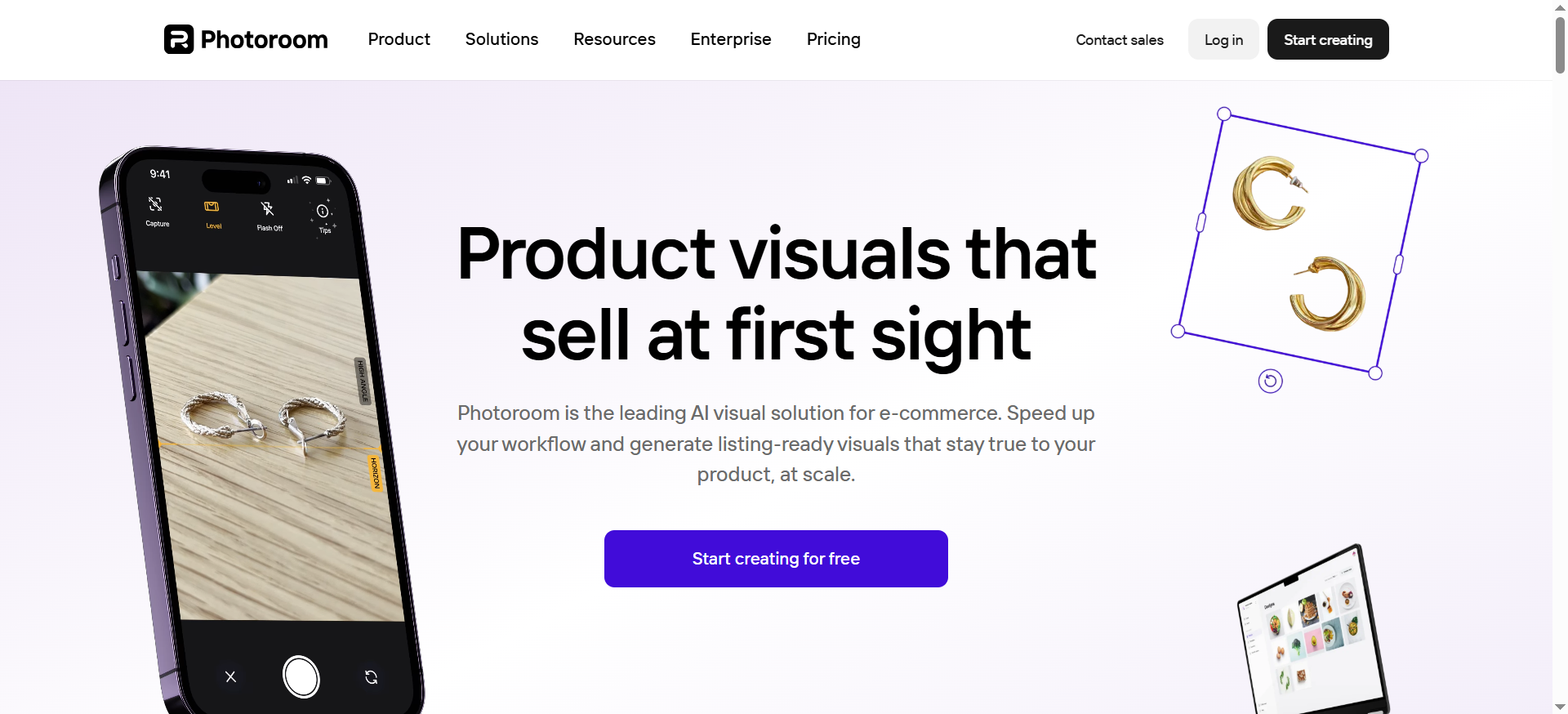
Photoroom is an AI-powered photo editing app built specifically for sellers, creators, and small businesses who need professional product photography without a studio. Core features include one-tap background removal, AI-generated backgrounds and scenes, virtual models for apparel, AI relighting, batch editing for up to 250 photos, AI ironing (removes wrinkles from clothing photos), image enhancement, and listing score optimization. It is purpose-built for ecommerce and marketplace sellers.
Why Teams Use It
Ecommerce teams and brand managers choose Photoroom because it solves the specific problem of producing consistent, high-quality product images at scale. The virtual model feature lets apparel sellers display clothing on AI-generated models without hiring photographers or real models. The batch processing handles up to 250 photos at once, which is critical for catalog-scale operations. The listing score feature analyzes product photos and suggests improvements based on marketplace best practices.
What It's Good For
Product photography for ecommerce listings on Amazon, Shopify, eBay, Poshmark, and Etsy. Creating clean white-background shots. Generating lifestyle scenes for product images. Displaying apparel on virtual models. Batch-processing catalog images — see our guide to the best AI for batch photo editing for more options. Optimizing listing photos for marketplace algorithms.
When It's a Good Fit
Photoroom is the right choice when your primary need is product photography at scale. If you are an ecommerce seller, a DTC brand, or a marketplace operator who needs to produce hundreds of clean, consistent product images, Photoroom does this better and faster than any general-purpose photo editor. It also fits well for social media content creators who need quick, polished product shots for posts and ads.
When It's Not a Good Fit
Photoroom is not a general-purpose photo editor. It cannot handle portrait retouching, landscape editing, or complex compositing. If your photo editing needs extend beyond product and marketing images, you will need a second tool. The AI-generated backgrounds, while useful, sometimes look artificial — especially in lifestyle scenes that require realistic lighting and shadows. The virtual model feature is limited to certain clothing types and body positions.
How To Use It
Photoroom is available as a web app, iOS app, and Android app. Upload a product photo, and the app automatically removes the background. From there, choose an AI-generated background, adjust lighting, or apply batch edits. The API is available for businesses that need to integrate Photoroom into custom workflows or automate image processing.
Key Capabilities
One-tap background removal. AI-generated backgrounds and scenes. Virtual models for apparel photography. Batch editing up to 250 photos. AI Relight for adjusting product lighting. AI Ironing for removing clothing wrinkles. Image Enhancer for resolution and quality. Listing Score for marketplace optimization. API access for automation. Mobile apps for on-the-go editing.
Pricing
Photoroom Free provides basic features with watermarks. The Pro plan costs $7.50/month (billed annually) or $12.99/month (monthly). The Max plan costs $20.83/month (billed annually). API pricing starts at $0.02/image for background removal and $0.10/image for full image editing.
Free Tier?
Yes. The free plan includes background removal and basic editing features but adds a Photoroom watermark to exports. Useful for testing and light use but not suitable for professional listings.
Downsides / Limitations
Limited to product and marketing photography — not a general editor. AI-generated scenes can look artificial in some contexts. Virtual model feature only supports certain clothing types and poses. Free tier watermarks make it unusable for production without upgrading. Batch processing is limited to 250 images per run. The AI credits system means heavy users on lower plans may need to upgrade mid-cycle.
Tool #5: Pixlr

What It Does
Pixlr is a browser-based photo editor that combines traditional editing tools with AI-powered features including generative fill, background removal, object removal, AI enhancement, style transfer, and face swap. It offers two editor modes — Pixlr X (simplified) and Pixlr E (advanced) — making it accessible to beginners while still offering layer-based editing for more experienced users. Everything runs in the browser with no download required.
Why Teams Use It
Teams choose Pixlr when they need a capable photo editor at the lowest possible price point. At $1.99/month for the Plus plan, it offers generative fill and background removal features that cost significantly more in competing tools. The dual-editor approach means a marketing intern can use Pixlr X for simple edits while a more experienced team member uses Pixlr E for layered compositions — all under the same subscription.
What It's Good For
Social media content creation, basic product photo editing, blog post images, quick retouching, and any scenario where the team needs browser-based editing without budget for premium tools. The generative fill feature handles background extension and object removal competently, and the AI enhancer can improve image quality with one click. Face swap is useful for creating variations of marketing visuals.
When It's a Good Fit
Pixlr fits when budget is the primary constraint and the team needs more than just background removal but cannot justify Photoshop or Canva Pro pricing. It works well for startups, solo operators, and small marketing teams who need a general-purpose photo editor with AI features. It is also a good choice for teams that want layer-based editing in the browser without installing desktop software.
When It's Not a Good Fit
Pixlr's AI features are functional but less refined than Photoshop's or Canva's. Generative fill quality is lower than Adobe Firefly or Stability AI-powered alternatives. The platform can feel slow on complex edits, and the free tier includes watermarks and ads. If your brand standards require high-fidelity generative content or you need batch processing, Pixlr will not meet the bar.
How To Use It
Pixlr runs entirely in the browser at pixlr.com. Choose Pixlr X for quick, simplified editing or Pixlr E for advanced, layer-based work. AI tools are accessible from the toolbar in both editors. A mobile app is available for iOS and Android.
Key Capabilities
Generative Fill for content generation and extension. AI Background Removal. Object removal with AI inpainting. AI Image Enhancer. Style Transfer for artistic effects. Face Swap. Layer-based editing (Pixlr E). Simplified editing mode (Pixlr X). Template library for social media and marketing. Mobile app support.
Pricing
Pixlr Free includes basic features with watermarks and ads. Pixlr Plus costs $1.99/month (or $0.99/month billed annually). Pixlr Premium costs $7.99/month (or $4.90/month billed annually). Pixlr Team costs $12.99/month (or $9.91/month billed annually) for up to 5 users. All paid plans include ad-free access, AI credits, and premium design tools.
Free Tier?
Yes. The free plan provides access to both editors with basic AI features, but outputs include watermarks on some exports and the interface shows ads. AI credits are limited. Functional for occasional personal use but not practical for business.
Downsides / Limitations
AI output quality trails behind Adobe and Stability AI-powered competitors. Free tier includes ads and watermarks. The interface can feel dated compared to Canva or Clipdrop. Performance degrades on complex edits in the browser. Limited integration options. Template library is smaller than Canva's. AI credits on lower plans are restrictive for heavy use.
How To Choose the Right AI Photo Editing Tool for Your Team
The decision comes down to three variables: what kind of images you are editing, how many you need to produce, and how much design skill your team has.If you are producing campaign-level creative with strict brand guidelines, Adobe Photoshop gives you the most control and the best AI output quality. The cost is justified when the assets appear in paid channels or high-visibility placements.If your team is mostly marketers who need to produce social media graphics, blog images, and presentation visuals, Canva Magic Studio removes the bottleneck of needing a dedicated designer. The template ecosystem and brand kit integration mean non-designers can stay on-brand without supervision.If product photography is your primary use case, Photoroom is built for exactly that workflow. The batch processing, virtual models, and listing optimization features are things no general-purpose editor matches.If you need a specific AI capability — especially relighting — at a low price, Clipdrop fills that gap without the overhead of a full editing suite.If budget is the deciding factor, Pixlr gives you the most editing capability per dollar, with generative fill and layer-based editing starting at $1.99/month. For a deeper breakdown of how these tools compare on specific editing tasks, see our guide on what is the best AI photo editor.
What Is AI Photo Editing and How Does It Work
AI photo editing uses machine learning models — typically neural networks trained on millions of images — to automate tasks that traditionally required manual skill and time. When you use generative fill in Photoshop, the AI analyzes the surrounding pixels, understands the context of the image, and generates new content that blends seamlessly. When Photoroom removes a background, a segmentation model identifies the subject and separates it from everything else at the pixel level.
The practical difference from traditional editing is speed and accessibility. Tasks that took a skilled designer 30 minutes — clean object removal, background replacement, image extension — now take seconds. This does not eliminate the need for creative judgment, but it dramatically reduces the execution time between having an idea and producing a finished asset. For marketing teams, this means faster content cycles, fewer design bottlenecks, and the ability to test more visual variations without proportionally increasing production cost. Teams evaluating AI-powered editing beyond photo-specific workflows can explore our best AI for image editing guide for a broader comparison.
Can AI Photo Editors Replace Professional Designers
Not yet, and probably not for the use cases that matter most. AI photo editors handle execution — removing backgrounds, extending canvases, cleaning up objects, generating variations. They do not handle strategy, brand judgment, or creative direction. A tool like Canva Magic Studio can help a marketer produce a social media graphic that follows the brand template, but it cannot decide what the campaign should look like in the first place.
Where AI tools genuinely reduce the need for a designer is in high-volume, template-driven work: ecommerce product listings, social media posts from existing templates, blog header images, and internal presentations. For these tasks, the quality gap between an AI-assisted marketer and a junior designer has effectively closed. For campaign-level creative, editorial photography, and brand identity work, professional designers remain essential — and the best ones are using AI tools to work faster, not being replaced by them. Teams that need generative image creation alongside editing can compare options in our best AI image generator guide.
Which AI Photo Editor Is Best for Product Photography
Photoroom wins this category by a wide margin. It is the only tool on this list built specifically for product photography, with features like one-tap background removal, AI-generated scenes, virtual models for apparel, batch processing for up to 250 images, and listing score optimization. The virtual model feature alone saves ecommerce apparel sellers thousands of dollars in photography costs by displaying clothing on AI-generated models instead of hiring real ones.
Adobe Photoshop can produce higher-fidelity product images, but the per-image time investment is significantly higher and requires design skill. Canva handles basic product shots well but lacks the batch processing and marketplace optimization features. For teams producing 50 or more product images per month, Photoroom's workflow advantage compounds quickly. If your editing needs extend into ad creative generation, our best AI image generator for ads guide covers that category.
How Much Do AI Photo Editing Tools Cost in 2026
Pricing spans from free to $29.99/month depending on the tool and plan. Pixlr offers the lowest paid entry at $1.99/month. Photoroom Pro starts at $7.50/month on annual billing. Clipdrop Pro costs $9/month. Canva Pro runs $15/month. Adobe Photoshop starts at $22.99/month, with the Photography bundle at $29.99/month.
Every tool on this list offers a free tier, but free plans come with meaningful limitations — watermarks (Photoroom, Pixlr), low image caps (Clipdrop at 15/month), restricted AI features (Canva), or no full product access (Adobe). For business use, expect to spend between $7.50 and $23 per user per month depending on which tool fits your workflow. Teams using multiple tools — a common pattern — should budget accordingly.
Are Free AI Photo Editors Good Enough for Business Use
For testing and occasional use, yes. For production workflows, rarely. Every free tier on this list has at least one limitation that makes it impractical for regular business output: Photoroom and Pixlr add watermarks, Clipdrop caps you at 15 images per month, Canva restricts the most useful AI tools to Pro, and Adobe does not offer a free version of Photoshop at all.
The exception is Canva Free, which remains genuinely usable for light design work — basic editing, simple templates, and limited AI features. If your team produces fewer than a dozen edited images per month and does not need advanced AI tools like Magic Grab or Magic Expand, the free tier works. For anything beyond that, the $7.50-$15/month cost of upgrading to Photoroom Pro or Canva Pro is a small price for removing the friction that free-tier limitations create.
What Are the Biggest Limitations of AI Photo Editing Tools
Three limitations are consistent across the category. First, AI-generated content still produces artifacts — weird fingers, inconsistent shadows, blurry edges — especially when the input image is complex or low-resolution. Generative fill in Photoshop is the best in class, but even it requires manual cleanup on roughly 20-30% of outputs.
Second, AI credits and usage caps create a ceiling on productivity. Canva Pro's 500 credits, Photoshop's 500 generative credits, and Clipdrop's 15 free images all force teams to think about consumption, which adds friction to creative work. Third, brand consistency is difficult to maintain with AI tools that generate content probabilistically — each output is slightly different, which is the opposite of what brand guidelines demand. Teams need to build QA steps into their workflow to catch inconsistencies before assets go live.
How Do AI Photo Editors Handle Brand Consistency
Brand consistency is handled differently by each tool, and none of them solve it fully. Canva comes closest with its Brand Kit feature, which locks in brand colors, fonts, and logos across all designs — but this applies to templates, not to AI-generated image content. Photoshop offers Creative Cloud Libraries for shared assets and color palettes, giving teams a reference point for consistency but no automated enforcement.
Photoroom, Clipdrop, and Pixlr have no brand management features at all. For these tools, consistency depends entirely on the operator following documented guidelines. The practical approach for most teams is to use brand-managed templates (in Canva or a DAM system) as the final output layer, with AI editing tools handling the image preparation underneath. This separates the "make the image look right" step from the "make the asset match the brand" step, which is easier to QA and scale.
FAQs
Canva Free offers the most usable free tier for business purposes, with basic AI editing features, thousands of templates, and no watermarks on standard exports. Pixlr Free provides more traditional editing tools but includes watermarks and ads. For single-task needs, Clipdrop Free gives access to every tool but limits output to 15 images per month.
Yes. Canva, Photoroom, and Pixlr all have native iOS and Android apps with AI features. Clipdrop is browser-only and works on mobile browsers but has no dedicated app. Adobe Photoshop has a mobile version (Photoshop Express) with limited AI features compared to the desktop application. For a focused comparison of mobile editors, see our best AI photo editor app for iPhone guide.
Photoroom is the clear leader for batch processing, handling up to 250 images at once with automated background removal and scene generation. Canva offers some batch capabilities through its bulk create feature. Photoshop has batch actions but requires scripting knowledge. Clipdrop and Pixlr do not support batch processing.
Adobe Photoshop supports RAW files natively through Camera Raw integration. Canva, Clipdrop, Photoroom, and Pixlr do not support RAW files — they work with JPEG, PNG, and WebP formats. If RAW processing is part of your workflow, you will need Photoshop or Lightroom as your starting point.
All five tools handle clean, well-lit product photos with high accuracy. The differences emerge with complex subjects — hair, transparent objects, and fine edges. Photoshop produces the most precise results with its refined edge detection. Photoroom is optimized specifically for product photos and handles them cleanly. Canva and Clipdrop are reliable for standard subjects. Pixlr's background removal is functional but less refined on difficult edges.